Enabling and Disabling Features
The CyberScope Air supports disabling (and re-enabling) certain features to meet a variety of security needs. These features are referred to as controlled features in this user guide section.
You can navigate to the Feature Access screen from the left-side navigation drawer in NetAlly apps, such as AutoTest and Ping/TCP.
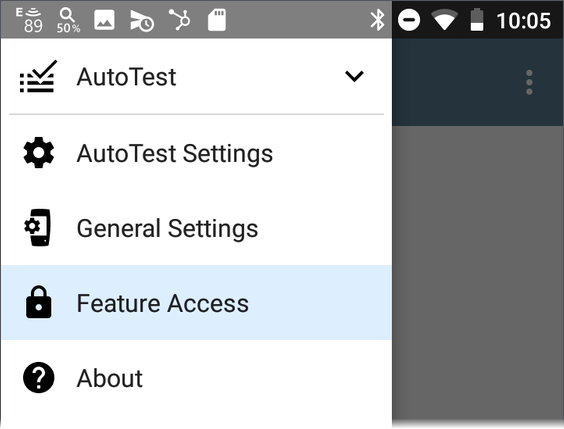
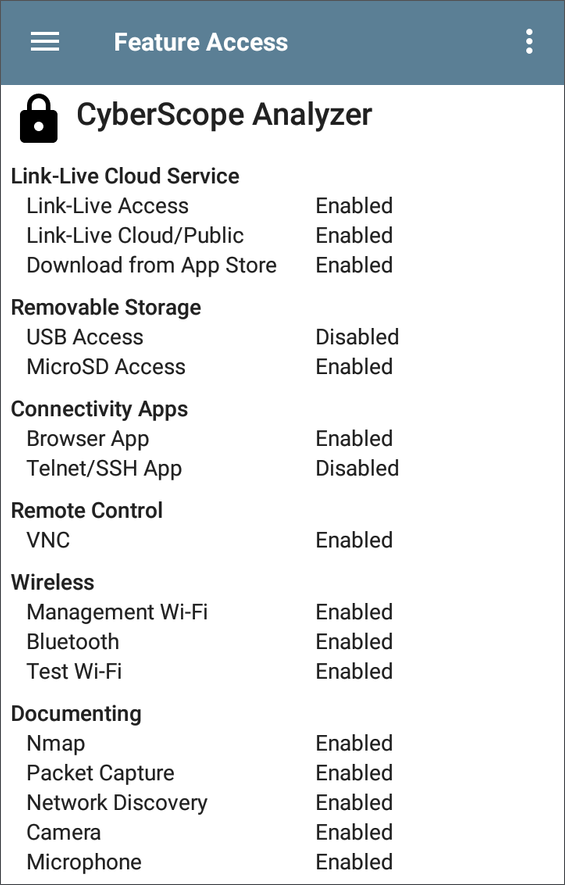
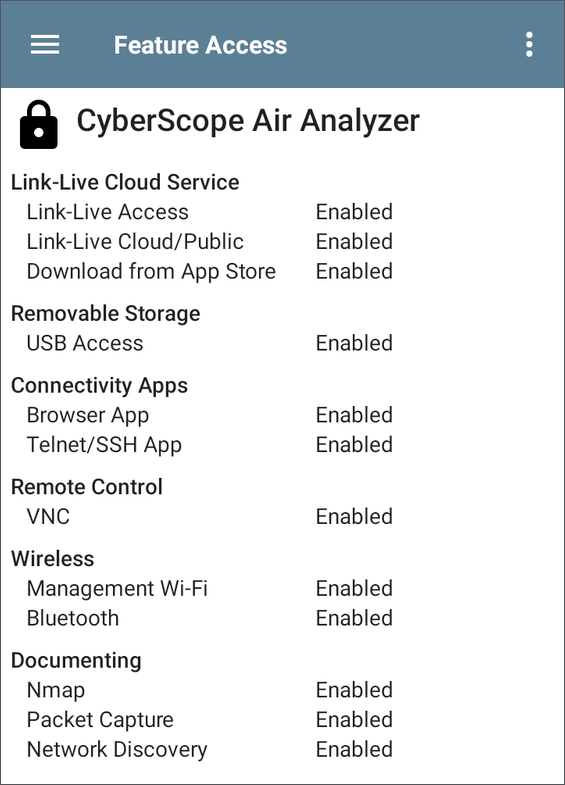
Select Feature Access to view the Feature Access status screen. This screen shows the current state of the controlled features.
To Disable a Feature Temporarily
-
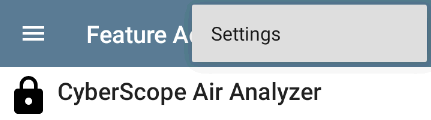
To change access to a controlled feature non-permanently, tap the action overflow icon
 , and then tap the Settings option.
-
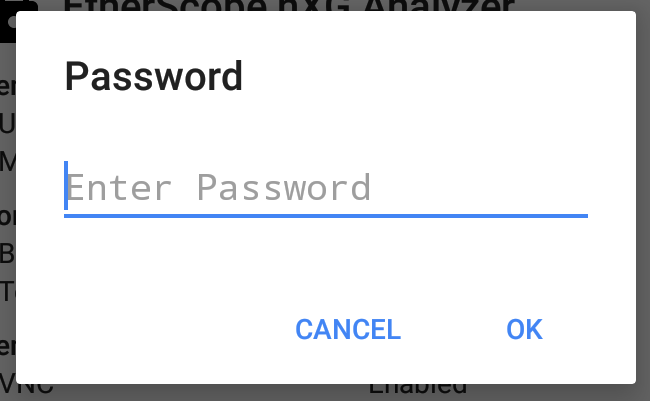
When prompted, enter the password, and then tap OK.
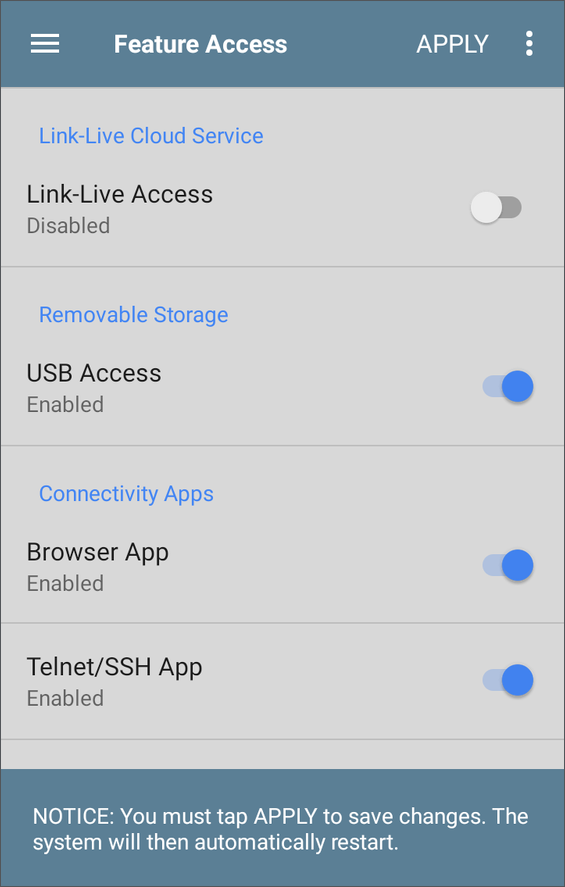
The Feature Access settings screen lists your tester's controlled features and their current state: Enabled or Disabled.
-
Touch the toggle buttons to Disable or Enable features on your unit as needed.

-
Touch APPLY to confirm the current states of enabled and disabled features.
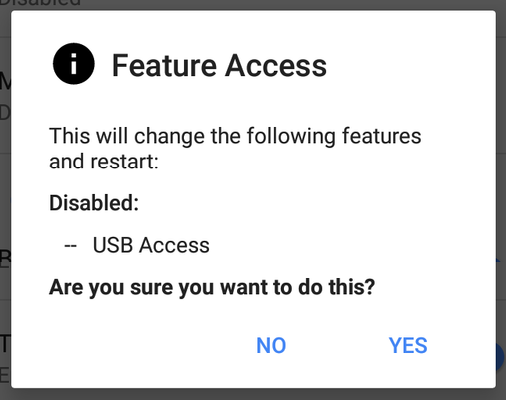
A dialog lists the pending feature changes.
-
In the dialog:
- Select YES to make the pending changes.
- Select NO to cancel the pending changes and return to the Settings screen.
The unit automatically restarts to apply the changes.
-
To view the new state of the controlled features, visit the Feature Access status screen again.