Sharing Files
The system Files  app lets you share files from internal or external storage to
NOTE: Many apps on your unit allow you to save settings and configuration information directly to Link-Live. See Saving App Settings and Configurations.
-
On the Home Screen, open the Files app by tapping the icon
. -
Navigate to the folder containing the files you want to share using the Navigation menu
 or the left-side navigation drawer.
 -
Long-press on one or multiple files to select it.
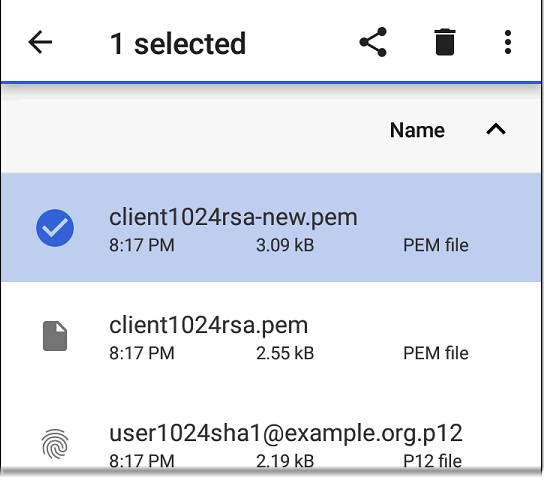
-
Tap the
 share icon in the top toolbar to view sharing options on your tester, such as those shown below.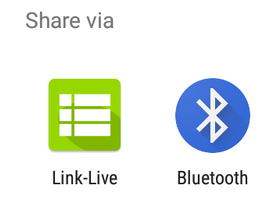
-
Select a sharing method and follow the system prompts to share the file or files.
-
(Optional) If you are uploading to Link-Live:
-
Tap the
 Link-Live option.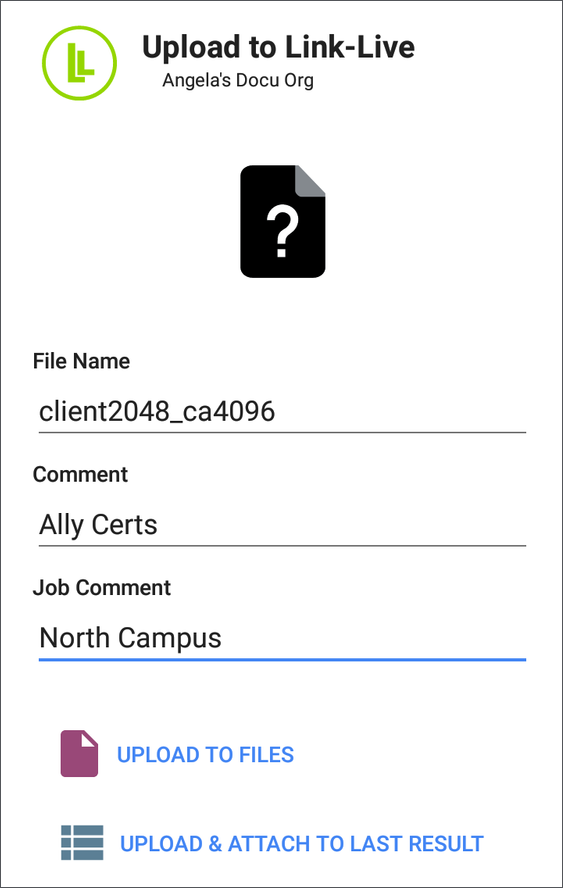
-
Enter any Comments you would like attached to your file.
-
Select UPLOAD TO FILES or UPLOAD & ATTACH TO LAST RESULT.
Your files are then uploaded and viewable on Link-Live.com. The UPLOAD & ATTACH TO LAST RESULT option attaches the image to your most recently uploaded test results. The UPLOAD TO FILES option sends the files to the Files page on Link-Live.
-
See the Link-Live chapter for more information on using Link-Live with your CyberScope.
-
Sharing a Screenshot
To take and share a screenshot:
-
Press and hold the Power button and the Volume Down button at the same time for one second. (See Buttons and Ports for button locations). The unit beeps and adds a notice to the Notification Panel.
-
Access the file either by opening the Notification Panel and tapping the screenshot notice or by using the Files app.
-
Follow the Sharing procedure to share the image using Link-Live, Bluetooth, or another configured application.