 EZ Wi-Fi App
The EZ Wi-Fi application provides a simplified workflow for testing a wireless network connection. When you tap START, the tester connects to the selected SSID and performs standard AutoTest Wi-Fi Profile test steps in the background, while EZ Wi-Fi presents the results in a condensed format.
EZ Wi-Fi consolidates key Wi-Fi metrics such as signal strength, channel, retries, and TX rates. Link Data graphs continue to update in real time while the connection remains active.
Viewing EZ Wi-Fi Results
Touch START to initiate a test.
The example below shows a wireless connection test with an active link.
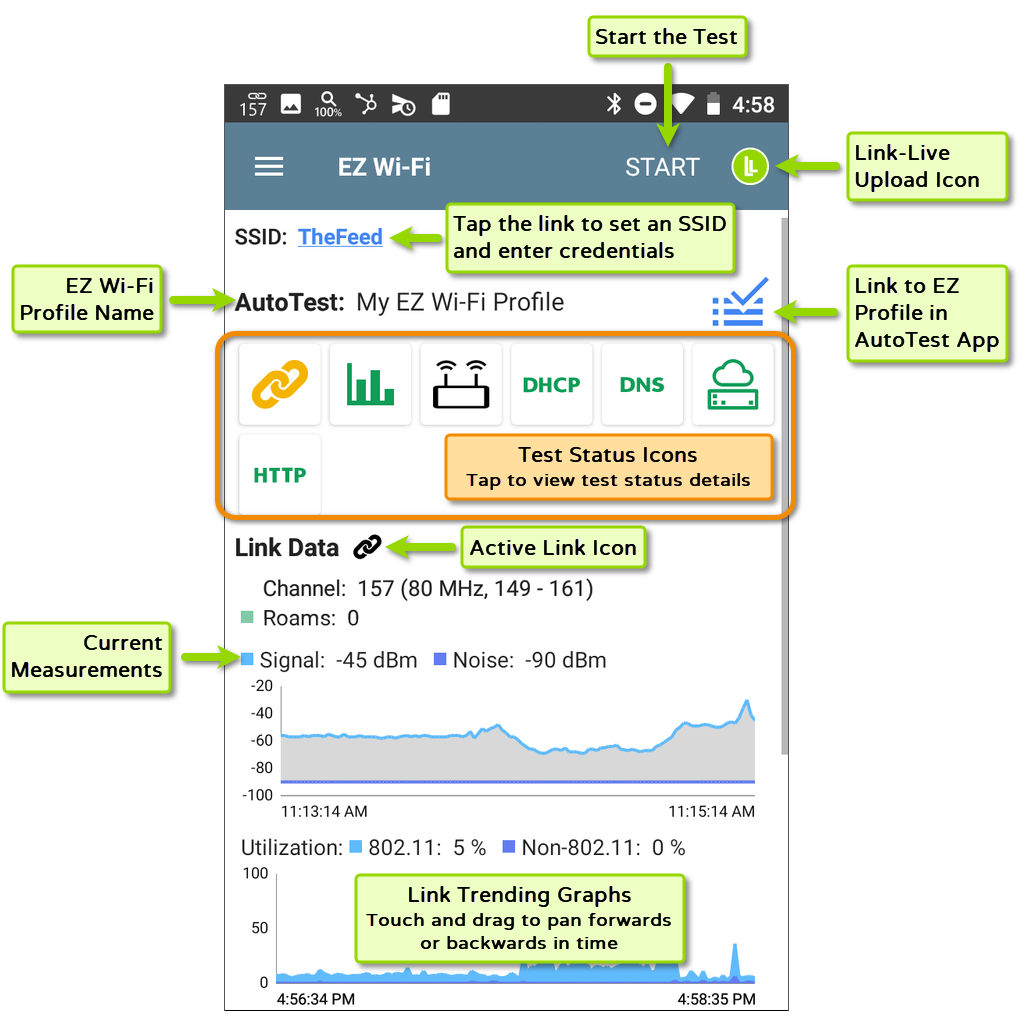
As the test runs, each step appears as a status icon:
Green — Successful result
Yellow — Warning condition
Red — Failure detected
The link status icon is displayed in the top right of the EZ Wi-Fi screen.
-
 A green link icon indicates an active network connection.
 -
 A black broken link icon indicates the tester is not currently linked on the connection configured by this test profile.
 -
No link icon is displayed when there are no link results.
You can tap any icon to open the detailed results for that component: Link, Channel, AP, DHCP, DNS, Gateway, and test targets.
EZ Link Trending Graphs
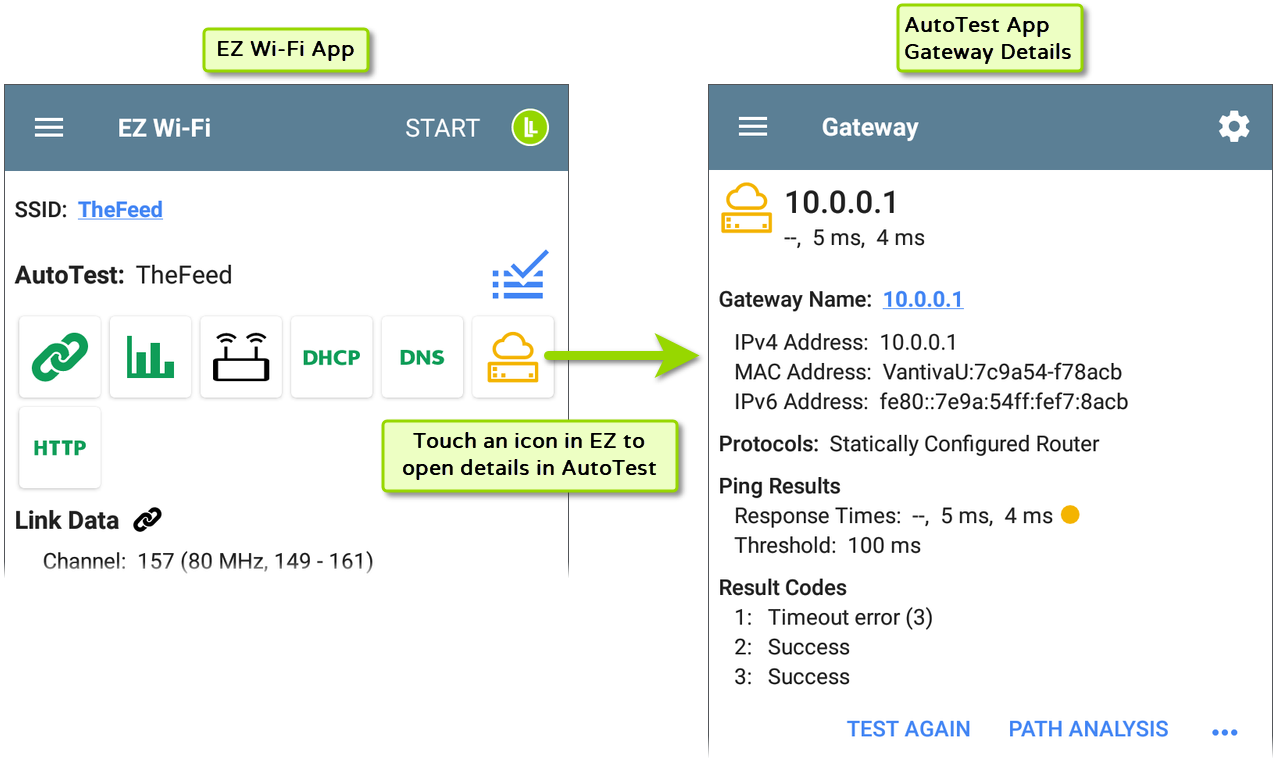
The EZ Wi-Fi screen includes live trending graphs for Signal/SNR, Utilization, and Transmit Rate (TX). As data updates each second, the graph fill color changes to yellow when a value exceeds its Warning threshold, or red when it exceeds the Error threshold, and returns to normal when the value drops below both thresholds. To configure the thresholds for each graph, open the EZ Wi-Fi Profile settings in AutoTest. See Live Graph Thresholds.
Configuring EZ Wi-Fi Profile Settings
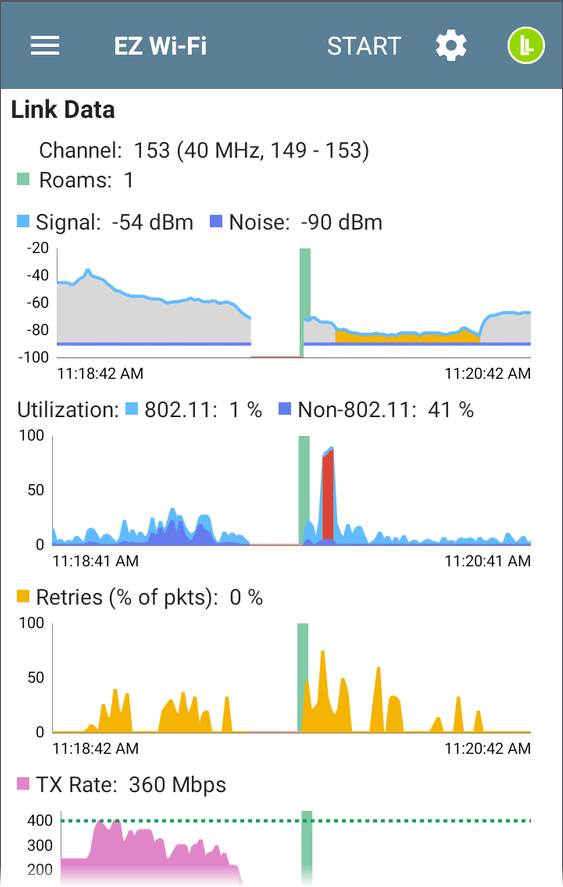
To quickly choose an SSID and enter the Password or other credentials required to connect, tap the SSID link at the top of the EZ Wi-Fi screen.
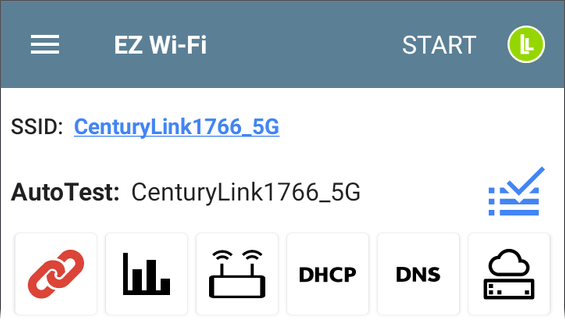
-
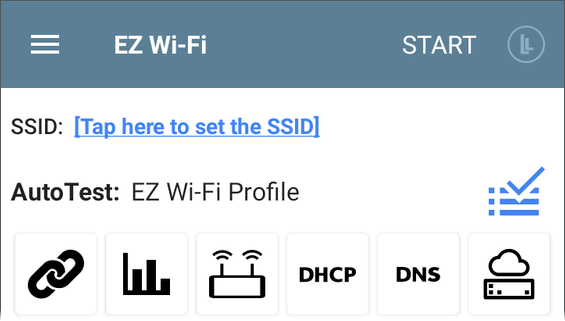
EZ Wi-Fi uses the configuration from the current EZ Wi-Fi Profile, including Wi-Fi Connection settings and test targets. Like other Wi-Fi profiles, the EZ Wi-Fi Profile is named after the SSID once one is selected.
-
If an AutoTest profile with the same SSID already exists when you change the SSID in EZ Wi-Fi, the associated connection settings (such as the password) are automatically applied. In this case, no additional configuration is required.
-
The EZ Wi-Fi connection settings are simplified. Settings that are not shown default to commonly used values or are inherited from an existing AutoTest profile. To view or modify advanced Wi-Fi settings, open the profile in the AutoTest app.
-
You can configure additional settings, add test targets, and enter a custom name from the profile's settings. Any added test targets will appear as new icons in the EZ Wi-Fi summary view.
Accessing EZ Wi-Fi Profile Settings
-
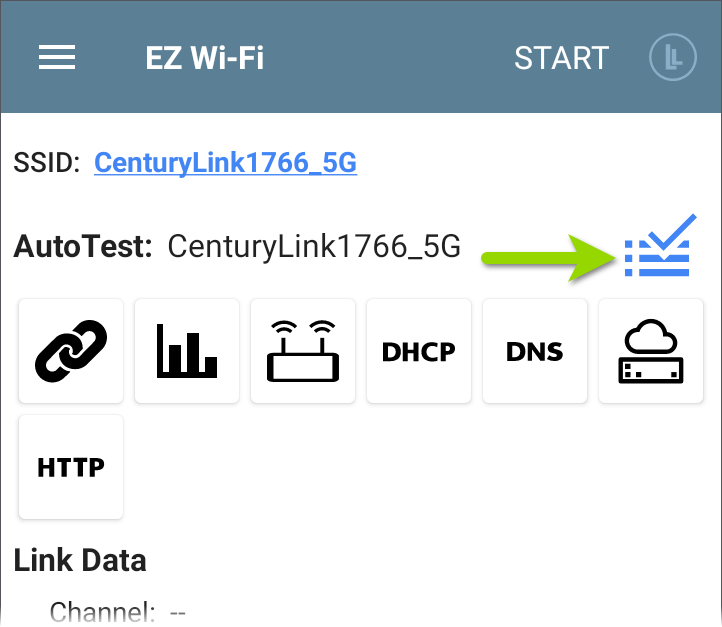
On the EZ Wi-Fi screen, tap the gear icon to open the EZ Wi-Fi Profile settings screen.
You can also open the AutoTest app, and tap the settings icon on the profile's results screen.
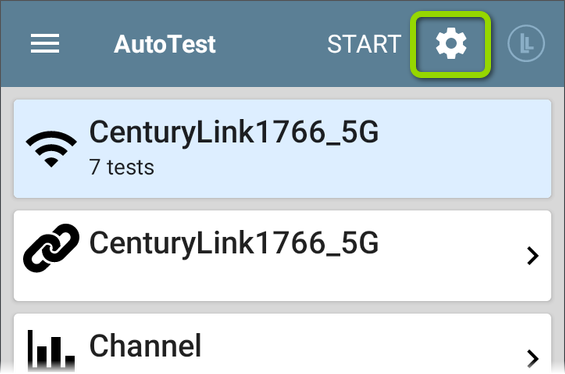
-
On the EZ Wi-Fi Profile settings screen, configure as needed.
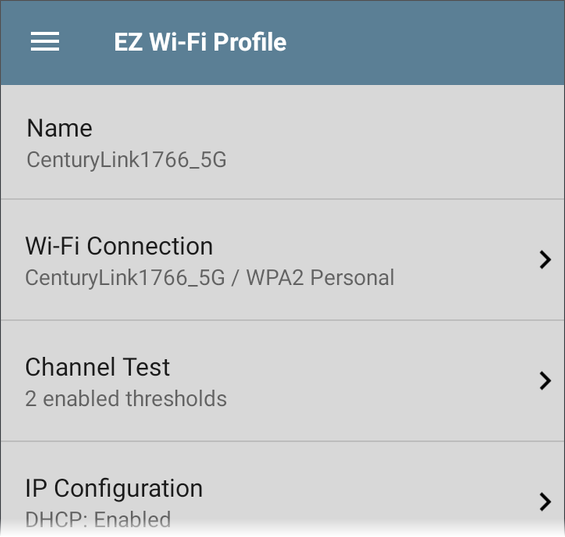
The settings you configure on the EZ Wi-Fi Profile settings screen (above) will be used to run this profile from either AutoTest or EZ Wi-Fi.
For information on Wi-Fi Profile settings, see Wi-Fi AutoTest Profiles
EZ Wi-Fi Profile Name
As in AutoTest, by default, Wi-Fi Profiles take the name of the selected SSID. You may give the EZ Wi-Fi Profile a custom name that will display instead of the SSID. The same profile will continue to be the designated EZ profile, regardless of the name. Additionally, the EZ profiles are easily identified in AutoTest Settings.

Viewing and Managing All Profiles
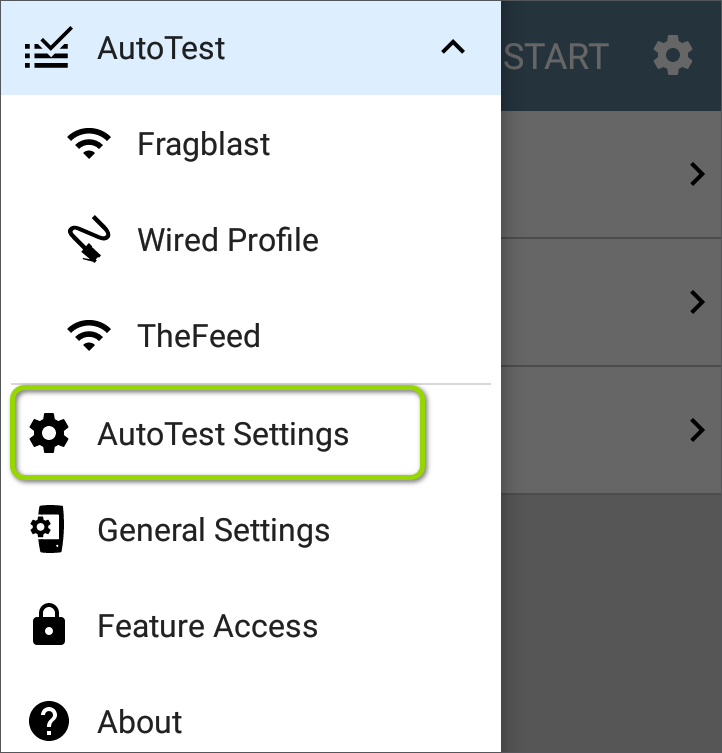
To view and manage all of your AutoTest profiles, navigate to the AutoTest Settings screen from the navigation drawer in the AutoTest app.
The AutoTest Settings screen indicates which profile(s) are the EZ profiles.
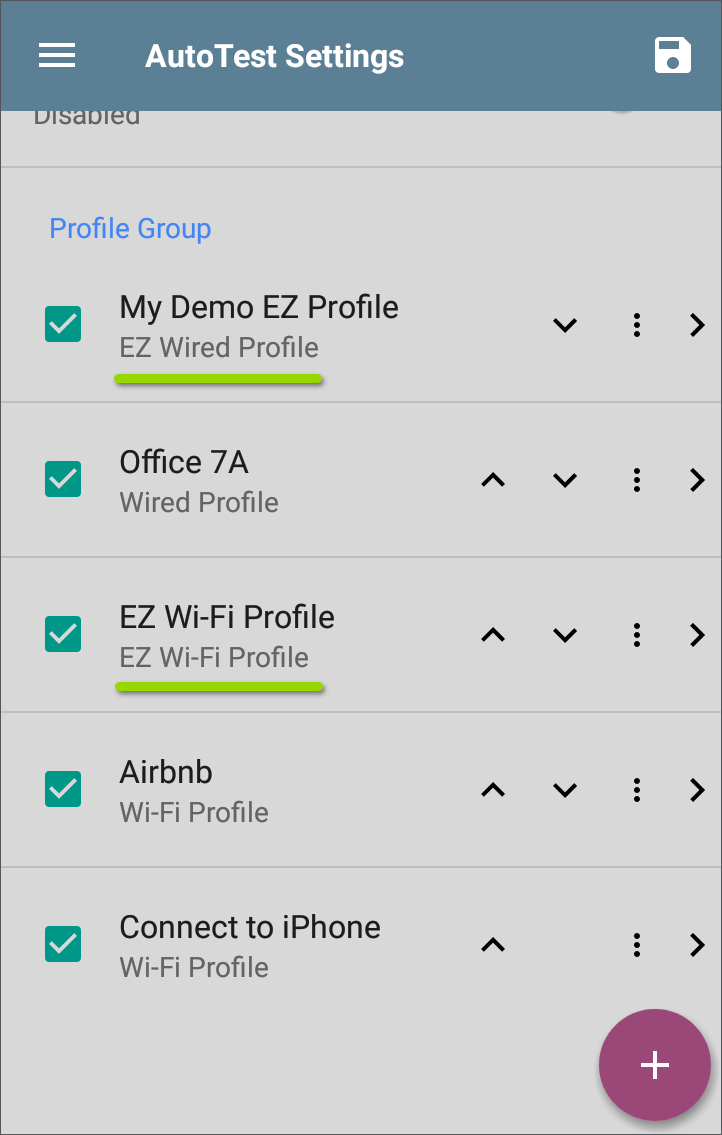
NOTE: If you have a Wi-Fi only tester (AirCheck, CyberScope Air), you will only see Wi-Fi Profiles here.
Touch any of the profile names to open and customize their individual settings. See AutoTest Settings and Profile Groups for the full topic on this screen and its functionality.
You cannot select a different profile to use as the EZ profile, but you can copy all settings from a different profile into the EZ profile.
Copying Profile Settings to the EZ Profile
To copy the configuration from a different Wi-Fi profile to the EZ profile, go to the main AutoTest Settings screen from the navigation drawer in the AutoTest app.
On the AutoTest Settings screen, tap the overflow icon for the profile you want copied, and select Copy to EZ Wi-Fi Profile.
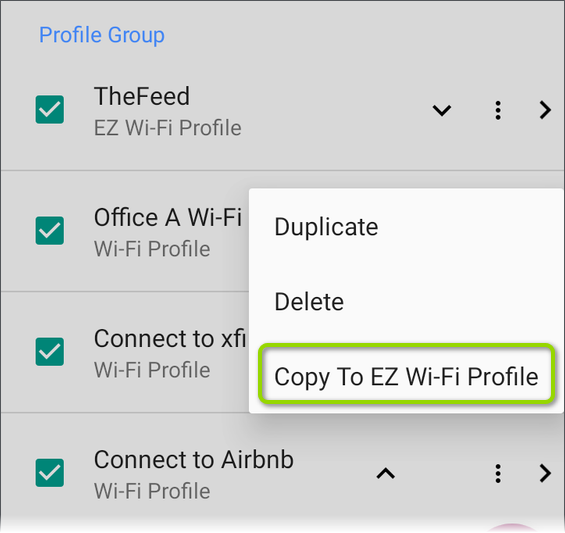
All configuration settings will be applied to the EZ Wi-Fi Profile.
Related Topics
See the Wi-Fi AutoTest Profiles topic and sub-topics for more information on Wi-Fi connection settings and results.