Uploading Test Results and Files
Your CyberScope can upload test results, graph images, text files, configuration files, screenshots, and other assets to Link-Live. Most test applications offer options to automatically or manually upload test results upon completion of a test.
NOTE: Also see Automatic Upload Settings on the main Link-Live app screen to enable or disable automatic uploads for available testing apps.
In this Topic
Corresponding Link-Live.com Pages
Sharing a Text File to Link-Live
Uploading from Test Apps
The following test apps on your CyberScope provide data that you can upload to Link-Live:
AutoTest
Discovery
Wi-Fi
AirMapper
Cable Test
Capture
iPerf
LANBERT
Nmap
Path Analysis
Performance
Ping/TCP
Spectrum
If you have disabled Automatic Uploads, you can find manual Link-Live upload options on the right side of the app header.
Many apps display a Link-Live upload icon in the header: 
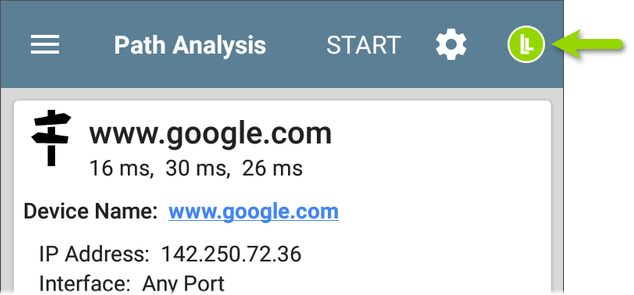
Tap the Link-Live upload icon to access the appropriate upload options for the app you are using. The color of the Link-Live upload icon indicates current upload status. See Upload Indicator Icons later in this topic for the icon color meanings.
In apps with additional actions, find the Link-Live upload options in the overflow menu: 
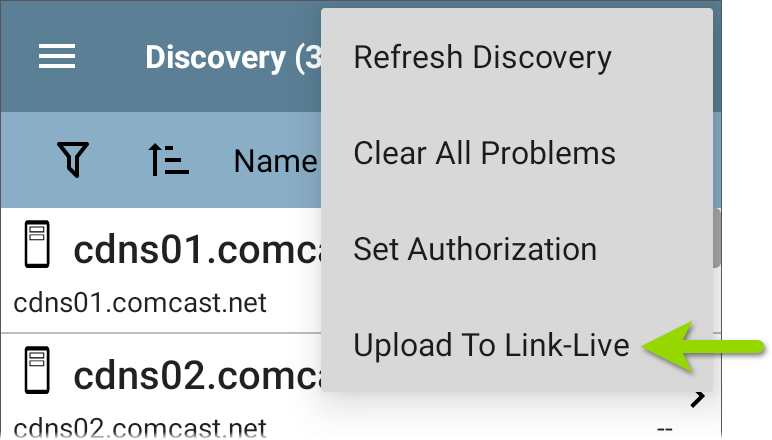
Link-Live Upload Screens
Whenever you select a button or action to Upload to Link-Live, a Link-Live upload screen appears with the appropriate options for the data type.
For example, the Link-Live upload screen for Discovery
 page on Link-Live.com.
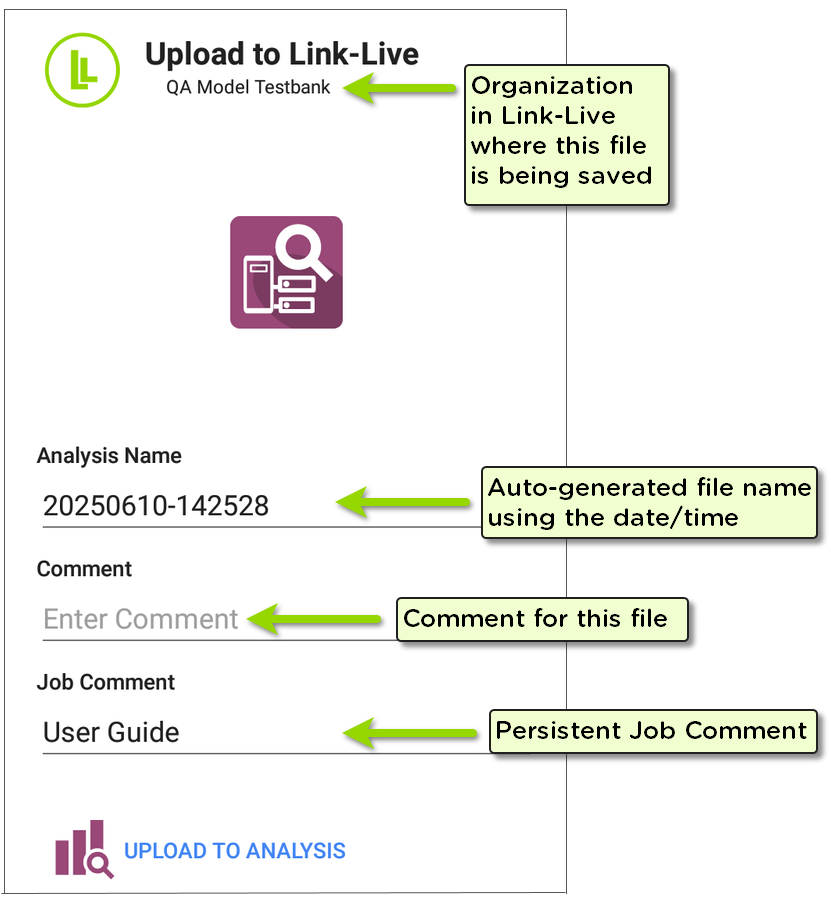
Touch the Name or Comment fields to enter changes.
Touch the blue destination link to initiate the upload.
The Link-Live upload screen for a screenshot or other image allows you to attach it to the most recently run test result on the Results  page, or to the Files
  page on Link-Live.com.
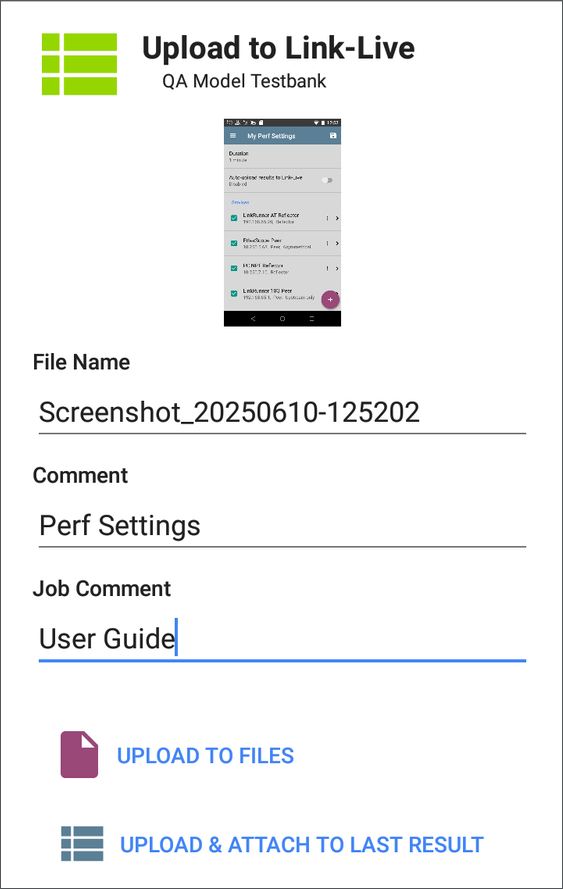
NOTE: Remember, the regular Comment field uploads only to the current result or file, while the Job Comment field uploads with all results and files until you change it.
Upload Indicator Icons
The Link-Live upload icon, shown in the header of test apps, changes color to show the current status of the test data.
| Icon | Status of Test Data |
|---|---|

|
Upload queued. A green filled Link-Live icon indicates that the test data has been queued for upload in the Link-Live App. Touch the green filled icon to open a Link-Live upload screen where you can change the file name and comments and re-upload. |

|
Upload available. An unfilled white Link-Live icon (showing the background blue) indicates that there is new test data available for upload, but automatic uploads are disabled. Touch the unfilled icon to manually upload results. |

|
Unit not claimed. A red filled Link-Live icon indicates that your tester unit is not claimed to Link-Live. Touch the red Link-Live icon to open the Link-Live app and claim your unit. See Getting Started in Link-Live Cloud Service. |

|
No data. A faded and disabled icon indicates that no current results exist for uploading. |
Local Saving Indicator Icons
A Save or disk icon displays when the Save Locally Only setting is enabled in the General Settings.
CAUTION: If this setting is enabled, you will NOT be able to upload saved test results to Link-Live later. Your test results will only exist in JSON form on your tester. This setting is mostly for support, demo, and troubleshooting purposes. Disable in General Settings.
| Icon | Status of Locally Saved Test Data |
|---|---|

|
A green filled disk icon indicates that the test data has been automatically saved. Tap the green disk to change the filename and re-save. |

|
An unfilled white disk icon (showing the background blue) indicates that there is new test data available to save. Touch the unfilled icon to manually save results. |

|
A faded and disabled disk icon indicates that no current results exist. |
Corresponding Link-Live.com Pages
Once your unit is claimed, the Link-Live app works with the testing apps to upload test results, discovery and analysis data, comments, and images to the Link-Live website. Link-Live.com categorizes the uploads from different apps on corresponding webpages, as shown below:
| Link-Live.com | Apps on CyberScope | |
|---|---|---|
| Icon | Page | Uploads |
|
|
Results |
AutoTest, Ping/TCP, Performance, iPerf, LANBERT, and Cable Test results Images, connect logs, and other files when attached to a test result |
|
|
Files |
Captures, graphs, images, logs, and other file types |
|
|
Analysis |
Discovery, Wi-Fi, and Path Analysis results |

|
AirMapper |
AirMapper Heatmaps |
Sharing a Text File to Link-Live
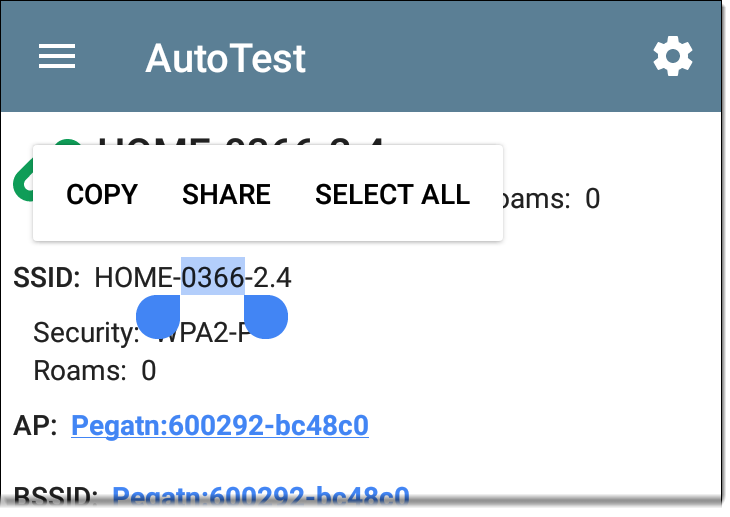
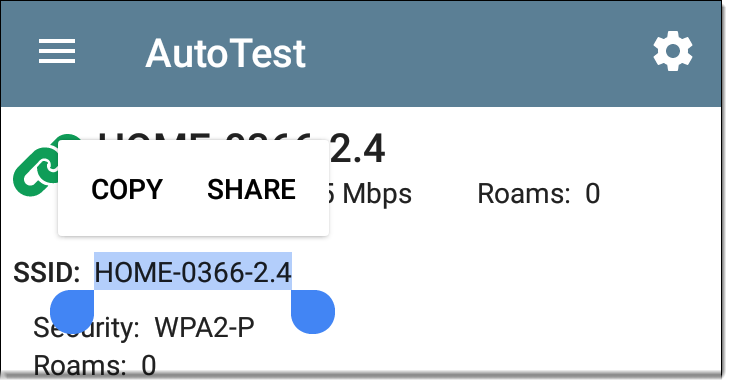
You can also select and share text by long pressing text on the unit's screen. Text files can be attached to the latest test results on Link-Live.com or posted in the Files section of Link-Live.
-
Long press a text string to select it.
-
Tap Select All if needed.
-
Tap SHARE.
-
Select the Link-Live icon to open the Link-Live upload screen.
-
Enter any comments as needed, and then tap UPLOAD TO FILES or UPLOAD & ATTACH TO LAST TEST RESULT.