Release Notes v3.0
This network tester is built on NetAlly's third-generation, common software platform. Read below for descriptions of new features and enhancements included in this release.
Third-generation products include AirCheck G3, EtherScope nXG, LinkRunner AT 1500/3000/4000, LinkRunner 10G, CyberScope, and CyberScope Air. Some applications and updates apply only to the specified products.
In this Release
Streamlined Claiming, Registration, and Software Updates
Nmap and Discovery Monitoring Added to New Products
EZ Wired and EZ Wi-Fi Enhancements
Discovery on the LinkRunner AT 3000
New Features & Enhancements
Ally Intelligence
Guided Solutions When Tests Fail
When a test fails, Ally Intelligence pinpoints common network problems and walks you through the fix right on the handheld, so many issues can be resolved in the field instead of escalated. For each problem it recognizes, Ally Intelligence explains the likely cause, presents supporting evidence, and provides How to Fix It guidance. That guided resolution is a clear, step-by-step workflow you can follow on site.
Ally Intelligence does not use a large language model (LLM)—it applies built-in diagnostic logic, based on NetAlly's 30 years of network engineering expertise, to identify specific causes and the details that point to a solution.
In v3.0, Ally Intelligence covers three common wired-network problems in the EZ Wired app:
-
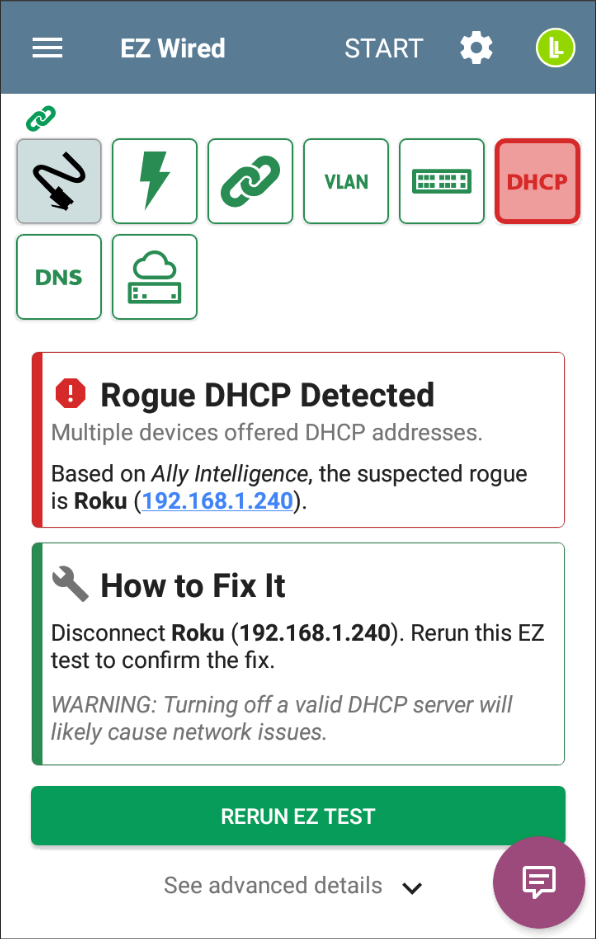
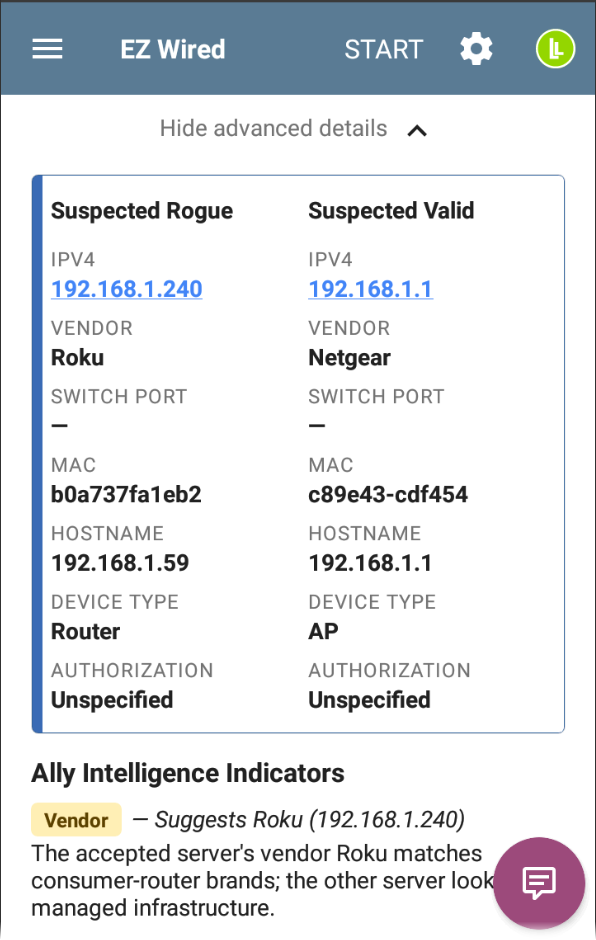
Rogue DHCP – Detects when multiple devices offer DHCP addresses and compares the servers side by side, weighing indicators such as vendor, hostname, lease time, SNMP response, and Authorization state to identify the suspected rogue.
-
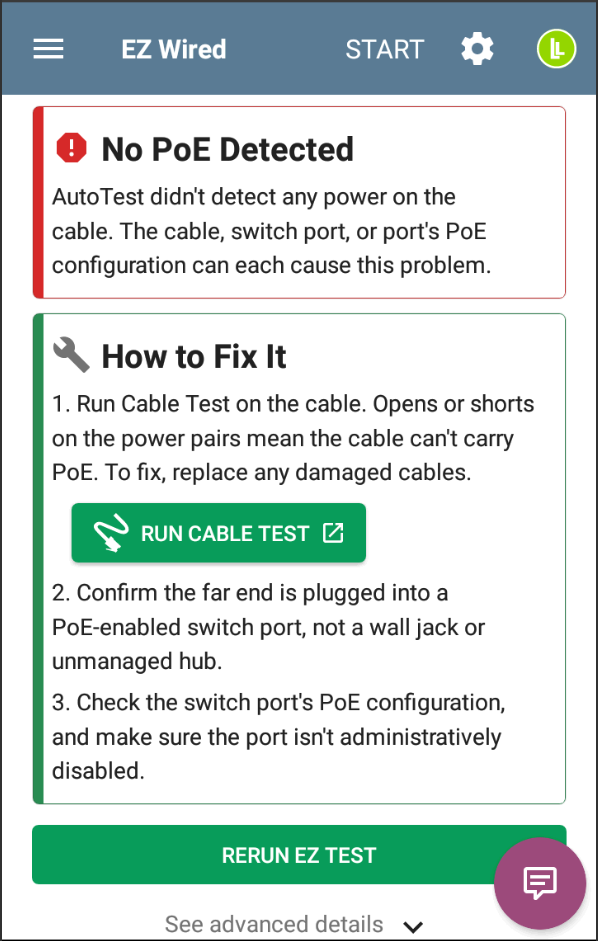
PoE – Flags when no Power over Ethernet is detected and guides you through checking the cable, the switch port, and the port's PoE configuration to restore power.
-
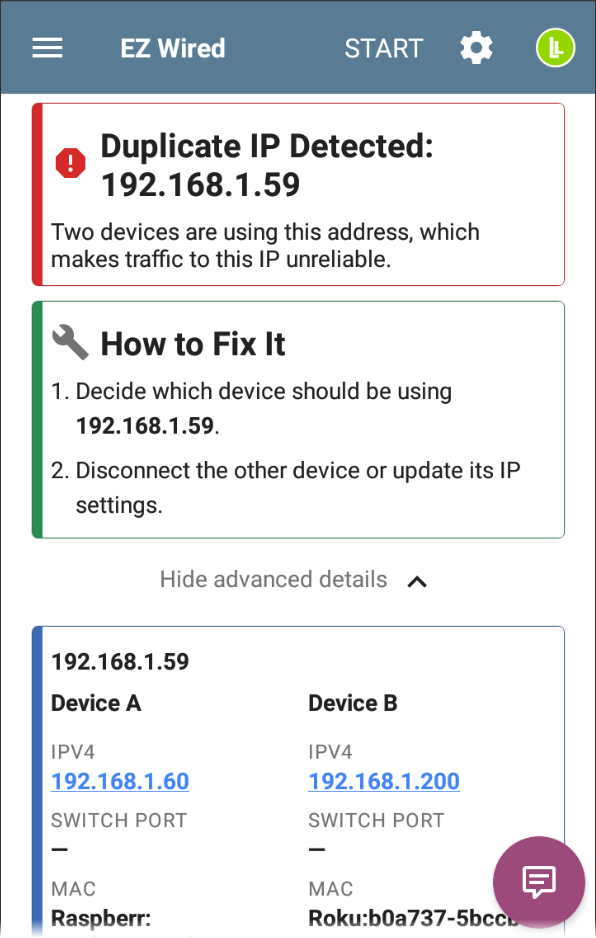
Duplicate IP – Detects when multiple devices are using the same IP address and shows the switch and port details for each conflicting device, so you can locate the duplicate and disconnect it or update its IP settings.
Ally Intelligence requires an active AllyCare Pro support subscription and is currently available on testers with the EZ Wired app including LinkRunner AT 3000 and 4000, LinkRunner 10G, EtherScope nXG, and CyberScope.
See netally.com/allycare-support for more information.
Streamlined Claiming, Registration, and Software Updates
Unit claiming and product registration are now a single process in Link-Live. Scan the QR code in the pop-up with another device, or go to Link-Live.com/Units/Claim, to claim and register a NetAlly tester.
Link-Live will inform the unit once it has been registered, removing the manual back-and-forth previously required to get a tester claimed and ready to use.
On a tester that has not yet been claimed and registered, a new series of pop-up dialogs replaces the previous registration prompt and guides you through the process. The dialogs provide:
-
A Claim Now button that starts claiming the unit to Link-Live.
-
A QR code that links to the claim URL for the unit, including the last six digits of its MAC address.
-
A Manual Process button that opens the previous registration dialog.
You have three days to register the tester. The dialogs count down the days remaining in the registration window and notify you when the window has expired. Claiming the unit through Link-Live is the quickest way to register, and it provides access to the full set of features.
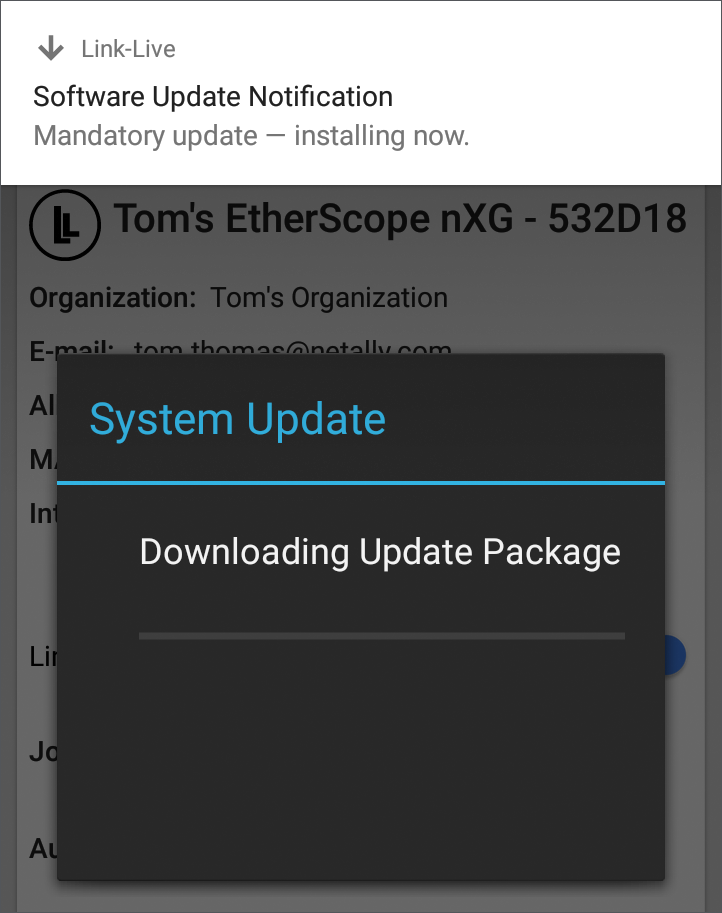
If an update is available when you claim the unit, Link-Live also pushes it to the tester automatically.
The manual registration process is still available at support.netally.com/registration for those who do not want to utilize Link-Live.
 Nmap and Discovery Monitoring Added to New Products
Nmap and Discovery Monitoring on More Platforms
Port scanning and continuous Discovery Monitoring are no longer limited to CyberScope. Nmap and Discovery Monitoring are now available on additional testers: EtherScope nXG, LinkRunner AT 4000, LinkRunner 10G, and AirCheck G3. On these testers, the features are part of an active AllyCare Pro support subscription.
Nmap is not available on the LinkRunner AT 1500 and 3000 models.
Updated Embedded Nmap Version
The embedded Nmap version has been updated to v7.99. See nmap.org/changelog.html for details.
PoE Auto Mode
New Auto Mode for PoE Testing
PoE testing now includes an Auto mode that detects the PoE configuration and adapts the test to it, instead of requiring you to configure the PoE settings manually before testing. Auto is now the default Class setting.
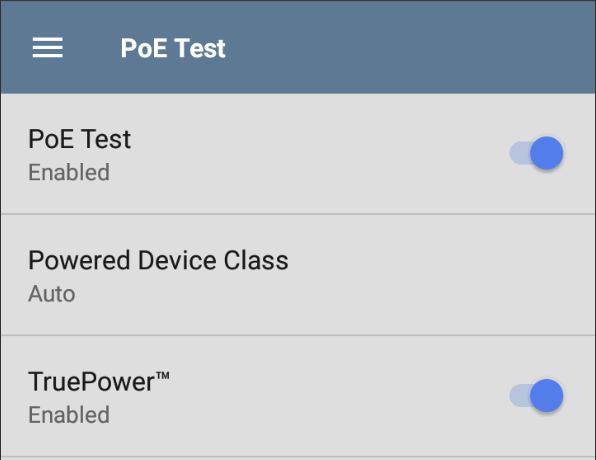
In Auto mode, the tester attempts a Class 8 negotiation and reports the negotiated class along with the PoE measurement results.
PoE results are no longer graded based on the presence, absence, or class of power received. When no PoE is detected, the PoE result shows a neutral (black) status, and the Result Code section displays dashes in place of values. When PoE is detected, the result is graded, and the only condition that produces a failure is a TruePower measurement that falls below the configured threshold (with TruePower enabled).
PoE testing is available on testers with a wired test port: LinkRunners, EtherScope nXG, and CyberScope.
EZ Wired and EZ Wi-Fi Enhancements
Add a Test Comment from EZ Wired and EZ Wi-Fi
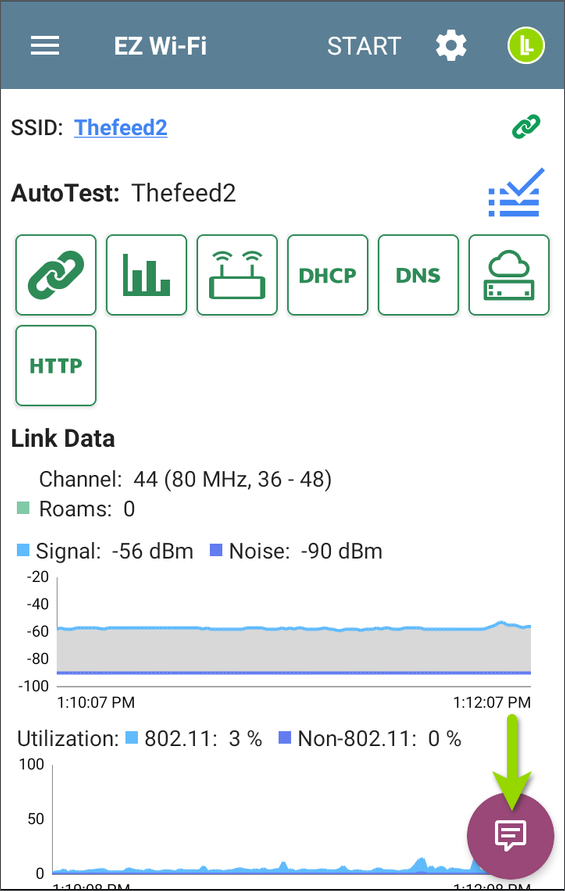
A new floating action button (FAB) has been added to both the EZ Wired and EZ Wi-Fi apps, letting you add a comment to your uploaded AutoTest results without leaving the EZ app.
Live Graph Thresholds for Wi-Fi
EZ Wi-Fi and AutoTest now apply live measurement thresholds to real-time data. As measurements update, values are color-graded against the configured thresholds, so you can quickly identify readings that fall outside expected ranges while a test is running.
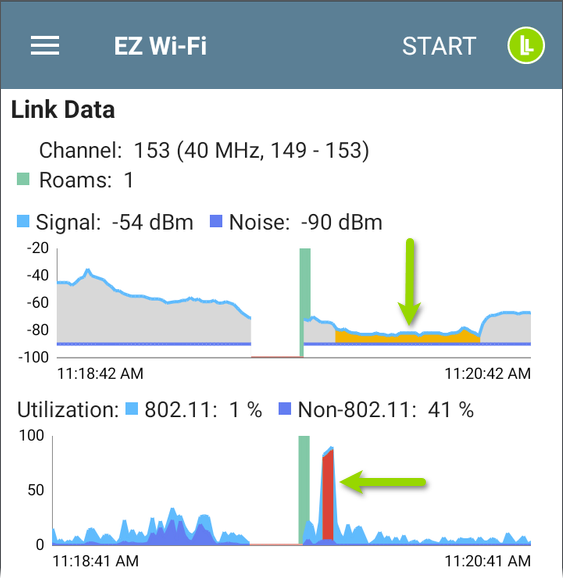
View these trending graphs by scrolling down on the main EZ Wi-Fi screen or navigating to the Link details screen in an AutoTest Wi-Fi Profile.
Configure the Live Graph Thresholds in the settings for the EZ Wi-Fi Profile or other AutoTest Wi-Fi Profile.
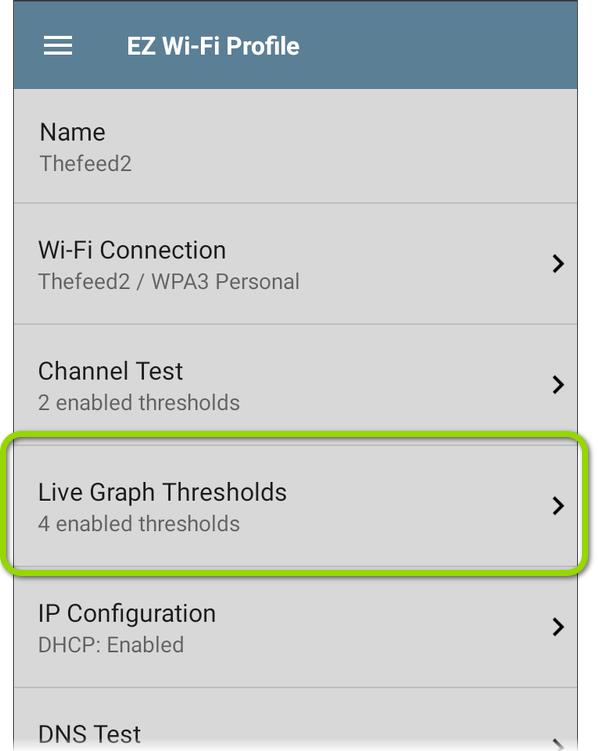
Thresholds can be set and displayed in the graphs for Signal or SNR, 802.11 Utilization, Non-802.11 Utilization, and TX rate.
Access to Profile Settings
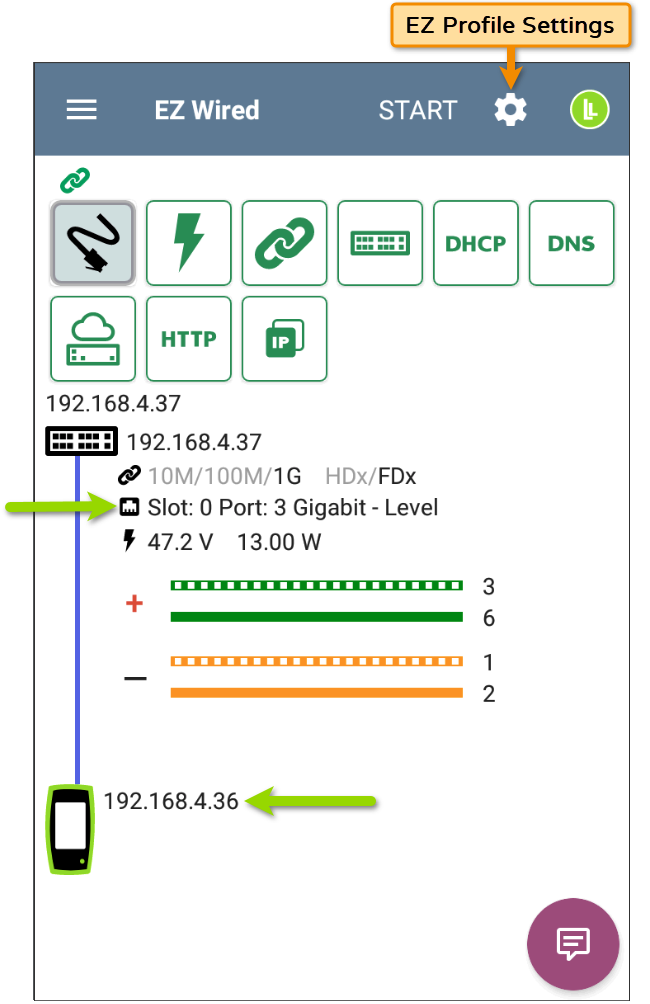
You can now update EZ profile settings without navigating to AutoTest. Tap the gear icon in the EZ Wired or EZ Wi-Fi app's title bar to review and change the settings for the EZ test profile.
Client IP and Port Indicator in EZ Wired
EZ Wired now displays the client IP address, along with a new icon near the port name, making it easier to confirm connection details at a glance (see image above).
Automatic EZ Wired Test on Cable Connection
When a cable is connected to the wired test port, AutoTest now automatically runs the EZ Wired profile, provided you are not actively using the AutoTest, Cable Test, or LANBERT apps. This provides immediate wired connection results without any additional steps.
EZ Wired is available on testers with a wired test port; EZ Wi-Fi appears on Wi-Fi-capable testers.
AutoTest Enhancements
Active Link Indication Enhancements
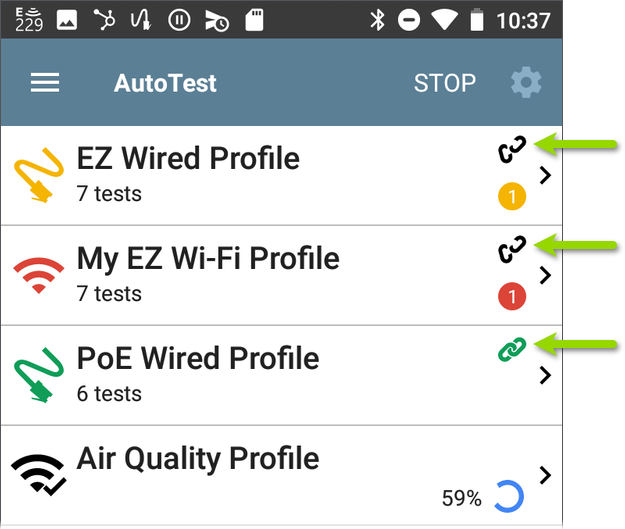
AutoTest now provides clearer indication of an active link, making it easier to see at a glance when the tester is connected and the link is up.
-
 A green link icon indicates an active network connection.
 -
 A black broken link icon indicates the tester is not currently linked on the connection configured by this test profile.
 -
No link icon is displayed when there are no link results.
Channel Range Shown at the Top Level of Wi-Fi AutoTest
The channel range now appears at the top level of Wi-Fi AutoTest results, preventing the truncation that could previously occur and making the full channel range easier to read.
Wi-Fi Analysis Enhancements
Locate from the AP Details Screen
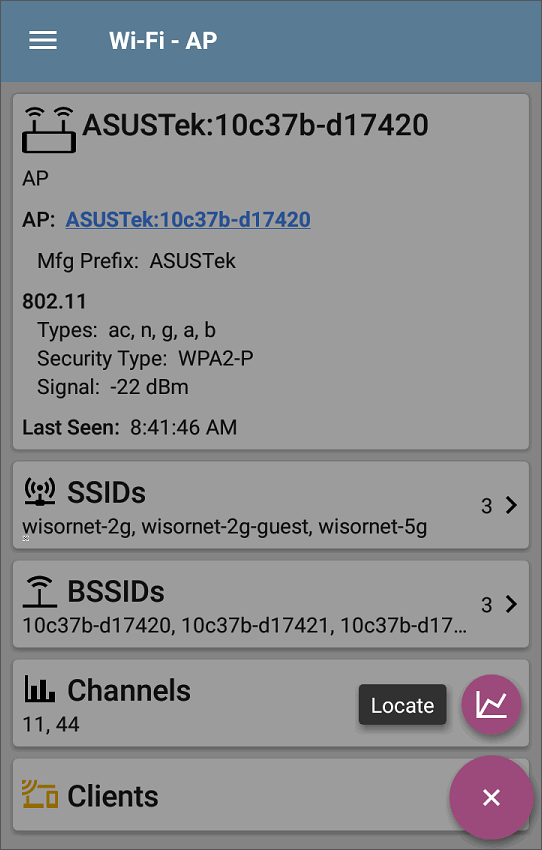
A Locate floating action button (FAB) has been added to the Wi-Fi AP Details screen, so you can start locating an access point directly from its details without returning to the list view.
Fast Scrollbar on Rates and Capabilities
The Rates and Capabilities page on the BSSID detail screen now includes a fast-scroll widget, allowing you to quickly navigate the full list of rates and capabilities.
Link-Live App Enhancements
Additional Results Uploaded to Link-Live
More test data is now uploaded to Link-Live:
-
Ping app results are now uploaded to Link-Live.
-
Additional SFP information is uploaded to Link-Live during an AutoTest.
-
LANBERT result data is now uploaded to Link-Live across all products.
-
When a user claims a unit that has an update available, Link-Live pushes that update to the unit automatically as soon as it is claimed.
Discovery on the LinkRunner AT 3000
Discovery App Now Available on the LinkRunner AT 3000
Discovery identifies the devices on your networks and provides detailed information about each one, helping you see what is connected and how it is configured.
Discovery on the LinkRunner AT 3000 is part of an active AllyCare Pro support subscription.
Expanded App Support
XAPK App Package Support
Testers can now install apps packaged as XAPK files (multi-file Android installs), expanding the range of apps that can be added to a unit.
Settings Enhancements
Custom Value Listed First in Settings Dialogs
In settings combo-box dialogs, the Custom Value now appears as the first option at the top of the list, making it quicker to enter a custom setting.
Bug Fixes and Improvements
-
AW-15162: Fixed an issue that prevented System WebView licenses (under System > About Tester > Legal Information) from opening.
-
AW-15153: Fixed an issue causing Android 11 to reboot when the same AOSP build was reinstalled.
-
AW-15121: Fixed an issue causing the EZ Wired app to close on launch when the EZ Wired profile was disabled.
-
AW-15113: Fixed an issue causing Android user creation to have no effect.
-
AW-15081: Fixed an issue causing wired testing to crash when an unusually short DHCP packet was received.
-
AW-15030: Fixed an issue causing NetAlly notifications to be rolled up and hidden.
-
AW-15026: Fixed an issue causing notifications to display a mix of languages after the system language was changed.
-
AW-15021: Fixed an issue that prevented the Mismatched Versions notification from appearing during a software update when expected.
-
AW-14981: Fixed an issue that prevented VNC input from resetting the Auto Power-Off timer.
-
AW-14975: LRAT-1500 – Corrected the Export Settings file name on the About screen, which incorrectly showed LRAT-3000.
-
AW-14974: EZ Wired – Corrected the units suffix on the PoE Power value.
-
AW-14957: Fixed an issue causing Discovery device details to identify an LRAT-1500 as a LinkRunner 3000/4000.
-
AW-14955: LRAT-1500 – Corrected the Automatic Uploads selection dialog, which incorrectly included LANBERT.
-
AW-14951: LRAT – Fixed an issue causing a “Settings keeps stopping” error during Android Wi-Fi management.
-
AW-14940: AirMapper – Corrected the default Survey Mode to Quick (Auto Sampling).
-
AW-14935: Fixed an issue causing expired AllyCare to be reported as enabled until the next reboot.
-
AW-14927: Fixed an issue causing invalid data to be sent to Link-Live when iPerf could not run.
-
AW-14825: AirCheck G3 – Fixed a Wi-Fi roaming performance regression introduced between v2.4 and v2.8.
-
AW-14766: Fixed an issue causing duplicate results in Link-Live when results were uploaded multiple times.
-
AW-14639: Fixed an issue causing AutoTest to fail to link, or to link below the highest advertised speed, on C9300 switches.
-
AW-14599: Fixed an issue causing a Wi-Fi management command timeout to trigger a pop-up and reboot.
-
AW-14101: CyberScope – Fixed an issue causing Discovery to enter an infinite loop while testing for Nmap signatures.
Upgrading Tester Software
This software update is a key benefit of your AllyCare™ Premium Support Services contract. For more information about AllyCare benefits, see AllyCare Support · Customer Self-Service (netally.com).
If you have claimed your unit to Link-Live.com, we highly recommend following the Over the Air (OTA) Update procedure:
-
To check for available software updates at any time, open the
 Link-Live App from the Home screen.
 -
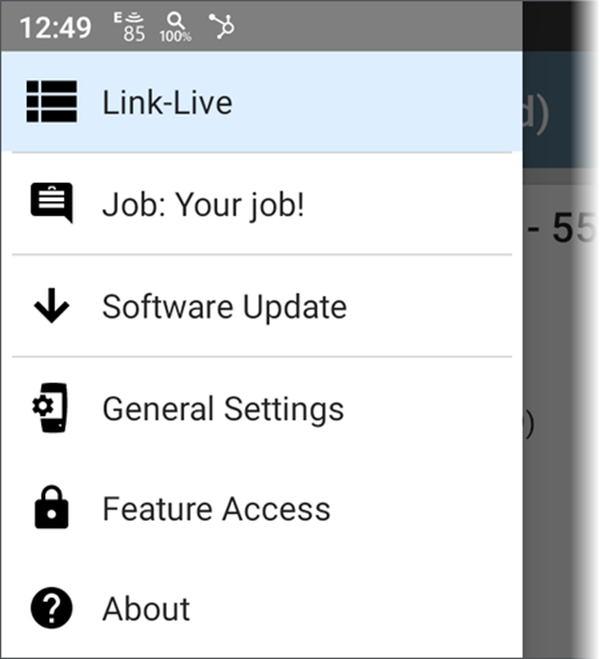
In the Link-Live App, touch the menu icon or swipe right to open the left-side Navigation Drawer.
-
Touch Software Update. The Software Update screen opens and displays the version number of any available updates.
-
Touch Download + Install to update the system.
When finished, the tester will restart.
Thank you for your investment in NetAlly products!