Test and Management Ports
On NetAlly testers, the Test Port is the interface used for most active network measurement and diagnostics. The Test Port may unlink and relink regularly as testing occurs.
The Management Port provides a more stable connection for software updates, Link-Live access, and basic testing and discovery.
AutoTest, the main comprehensive test app, always uses the Test Port. Other testing apps, such as Ping/TCP or Path Analysis, allow you choose from the test or management ports available on your CyberScope Air.
The CyberScope Air has two internal Wi-Fi radios for test and management functions.
These Wi-Fi ports give the CS Air two network interfaces, referred to as 1) Wireless Test and 2) Wireless Management.
Also see Buttons and Ports and the technical Specifications as needed.
 CAUTION! Review the Network Security recommendations before connecting your tester to any network, and always follow your organization’s security policies.
Test ports can be disabled and enabled in the General Settings – Shared Test Controls.
CyberScope Air Test Port
 Wi-Fi Test Port: The internal Wi-Fi test adapter is a 2x2 Tri-band 802.11ax wireless radio. (To disable, see General Settings in the testing apps' left-side navigation drawer.)
CyberScope Air runs
Use the AutoTest app (or EZ Wi-Fi) to set up and run an AutoTest Wi-Fi Profile to establish a link on the Wi-Fi test port. By default, the CyberScope Air starts in Wi-Fi passive scanning mode.
Test Port Settings
The General Settings affect how you can use the test port. These settings are accessible from the left-side navigation drawer in most NetAlly testing apps.
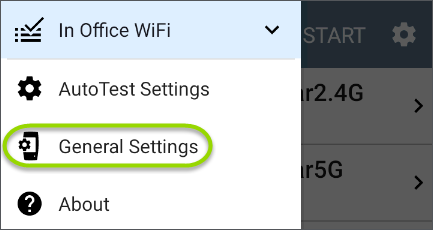
The Use Wi-Fi test port option must be enabled for the test
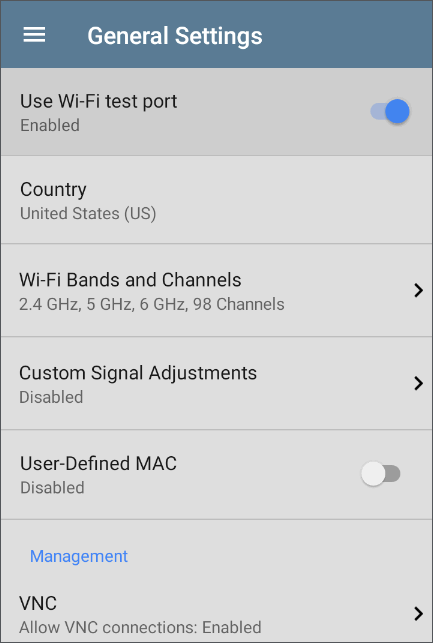
NetAlly also recommends that you enable all Wi-Fi Bands and Channels before setting up Wi-Fi Test Profiles:
-
Tap the Wi-Fi Bands and Channels option to open the Wi-Fi Bands and Channels screen.
-
Tap the Wi-Fi band(s) option to open a selection screen, and then enable all available bands.
-
Tap the option for each frequency band to open a selection screen, and then enable all available channels for each band.
This process makes it easier to set up the Wi-Fi Test Profiles, which you can limit to specific channels, APs, SSIDs, etc. See AutoTest Wi-Fi Profile for more information.
See General Settings for more information about all General Settings options.
 CyberScope Air Management Port
 Wi-Fi Management Port: The internal Wi-Fi management port runs on the main system's 1x1 Dual-band 802.11ac + Bluetooth 5.0 wireless adapter, which is configured in the system Device Settings. See Connecting to System Wi-Fi to configure this connection.
This radio provides full Internet access and a more stable network connection than the Test Port, which may frequently drop links and reconnect or resume scanning.
CS Air can run Discovery, Ping/TCP Connect tests, Path Analysis, and iPerf tests on the management port, but not AutoTests
 USB Wired Management Port: CyberScope Air can use a USB-to-Ethernet adapter to run a wired management port.
This option allows you to set up a stable wired connection for updating software, communicating with Link-Live, and for running basic wired tests that can help diagnose problems that may affect Wi-Fi devices.
USB Wired Management Port: CyberScope Air can use a USB-to-Ethernet adapter to run a wired management port.
This option allows you to set up a stable wired connection for updating software, communicating with Link-Live, and for running basic wired tests that can help diagnose problems that may affect Wi-Fi devices.
See our knowledge base article online for the latest information on supported USB-to-Ethernet adapters: https://www.netally.com/knowledgebase/ethernet-adapters-and-cameras/.
To set up the adapter interface:
-
Plug the adapter into one of the USB Type A ports on your device.
-
Connect the adapter to a network RJ-45 cable.
-
Verify that the LEDs on the adapter are on. This indicates that the connection is active.
-
Verify that the USB Wired Management Port is now listed as a management port in the Test and Port Status Notifications.
You can now use the USB Wired Interface in the following applications:
- Discovery (Active Discovery Ports and TCP Port Scan)
- Ping
- Path Analysis
See Selecting Ports below for more information.
Selecting Ports
Some of the individual NetAlly testing apps let you select which port interface to use for tests or analysis.
You may want to verify that you are getting a reliable connection to the Internet and the Link-Live cloud service while you are actively using the Wi-Fi Test port to perform an AirMapper survey. To check connectivity, you can configure the Ping/TCP app to use the Wi-Fi Management port to run a continuous background ping to the Internet.
Each port can connect to different networks. For example, an organization might have one network for visitors and another for staff. You can use different ports to check connectivity on each network without the need to link and relink through a single interface.
To change the port, tap an app's settings icon  to display the settings screen. Then tap Interface to select the port from a dialog.
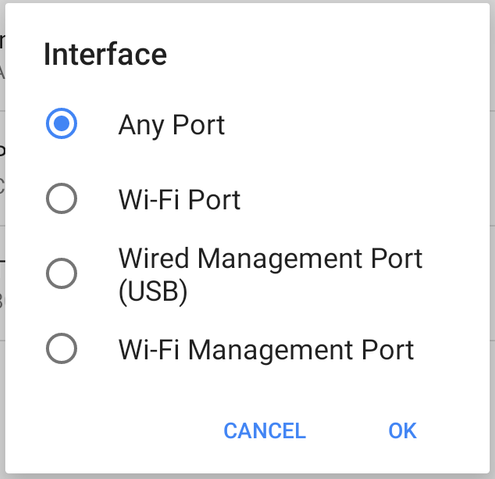
The top Wi-Fi Port refers to the test port.
The Wired Management Port (USB) option refers to the optional USB-to-Ethernet interface for the management port.