Running Nmap Tests
Run tests, edit run settings, and upload results from the Runner screen.
The Link-Live upload icon  in the app header indicates the status of uploaded or saved test results. Tap the icon to upload manually. See Uploading Test Results and Files in the Link-Live chapter.
To run Nmap tests:
-
Begin on the main Nmap Tests screen, and tap the test you want to run. This opens the Nmap Test parameter screen, which lets you edit the parameters for the test.
-
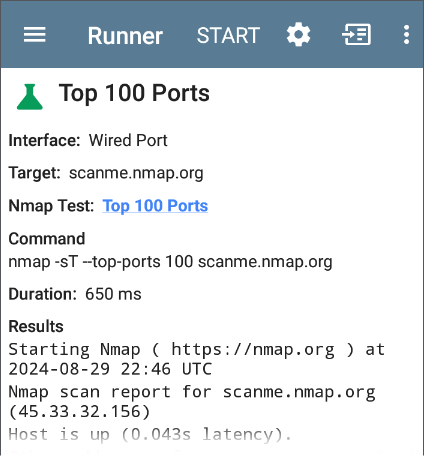
When you have changed any parameters that you want, tap TEST to open the Runner screen.
-
To adjust the run settings for this specific test (such as specifying a target if the test requires a target), tap the settings icon
 to open the Nmap Runner Settings screen. When you have finished, tap the system Back icon
  to return to the main Runner screen.
 -
Tap START. This runs the test with the parameters and settings that you have chosen.
-
(Optional) Tap the Link-Live upload icon
in the app header to manually upload results to Link-Live and revise attached comments.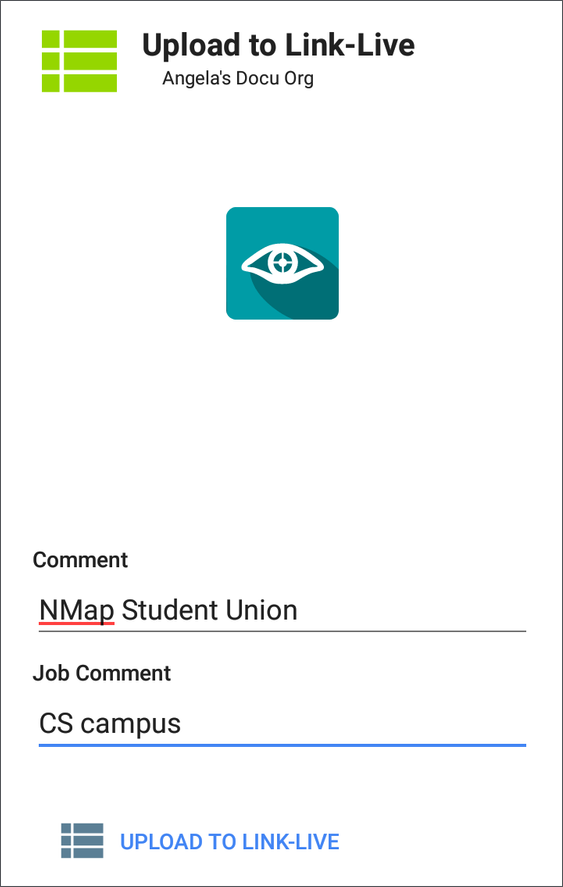
-
Enter a comment about the test in the Comment field.
-
Enter more specific information about the project or results in the Job Comment field.
-
Tap UPLOAD TO LINK-LIVE.
-
NOTE: The Next icon  in the screen header automatically scrolls between green, yellow, or red highlighted text in the Nmap Output.