Apps
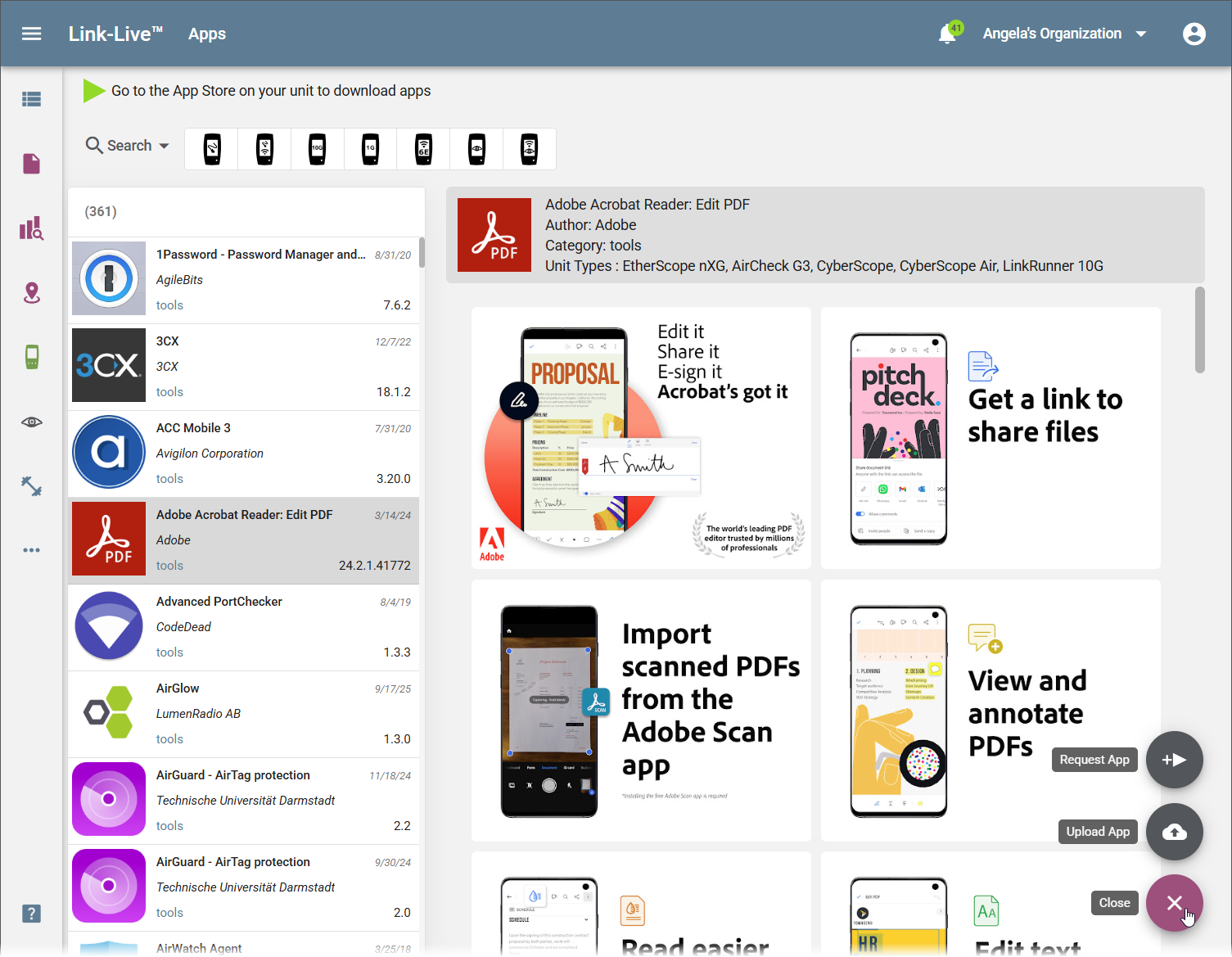
The Apps section in Link-Live is a curated catalog of third-party apps compatible with NetAlly testers. From this page you can browse the catalog and view details and compatibility information for each app. Apps are installed directly on the tester unit from its on-device App Store—they are not downloaded from Link-Live.
Tip: To install an app on a tester, open the App Store on the unit itself.
Browsing the App Catalog
The list panel shows all available apps with each app's icon, name, date added, publisher, category, and version number. The count at the top of the list shows the total number of apps available.
To filter the list:
-
Use the Search bar to find apps by name, author, or description.
-
Click a unit type filter button at the top of the list to show only apps compatible with a specific tester model.
App Details
Selecting an app in the list opens a detail panel that shows:
-
App name, Author, and Category
-
Unit Types – the NetAlly tester models that support the app (for example, EtherScope nXG, AirCheck G3, CyberScope, CyberScope Air, LinkRunner 10G)
-
Promotional screenshots and descriptions from the app developer
Requesting and Uploading Apps
The catalog contains two types of apps:
-
Public apps – Available to any Link-Live organization with a supported NetAlly unit.
-
Private apps – Uploaded by your organization and available only on units claimed to your organization.
Use the floating action button (bottom right) to manage app submissions:
-
Request App – Submit a request to have a public app added to the catalog. Provide the app name, a link to the app, and a description. The request is forwarded to the NetAlly development team; once approved, the app becomes available in the catalog to all Link-Live organizations.
-
Upload App – Upload a private APK to your organization's app catalog. This option is also accessible from Settings > Upload App in the navigation drawer.
Uploading a Custom App
WARNING: Installing and running private APKs outside the Link-Live store could harm your tester.
Selecting Upload App opens the Upload an App dialog. Complete the following fields, then click Upload:
-
App Name (required) – The display name for the app in the catalog.
-
Author (required) – The app developer or publisher name.
-
Description (optional) – A description of what the app does.
-
App Icon (optional) – Drag a PNG image or click the area to browse for an image to use as the app's icon in the catalog.
-
Upload APK (required) – Click the field to select the APK file to upload.
-
Unit Types (optional) – Select the tester models that support the app. Leave blank to make the app available for all unit types.
The uploaded app appears in your organization's app catalog and can be installed on tester units from their on-device App Store.