 Wired AutoTest Profiles
A Wired Profile runs a series of tests over your wired
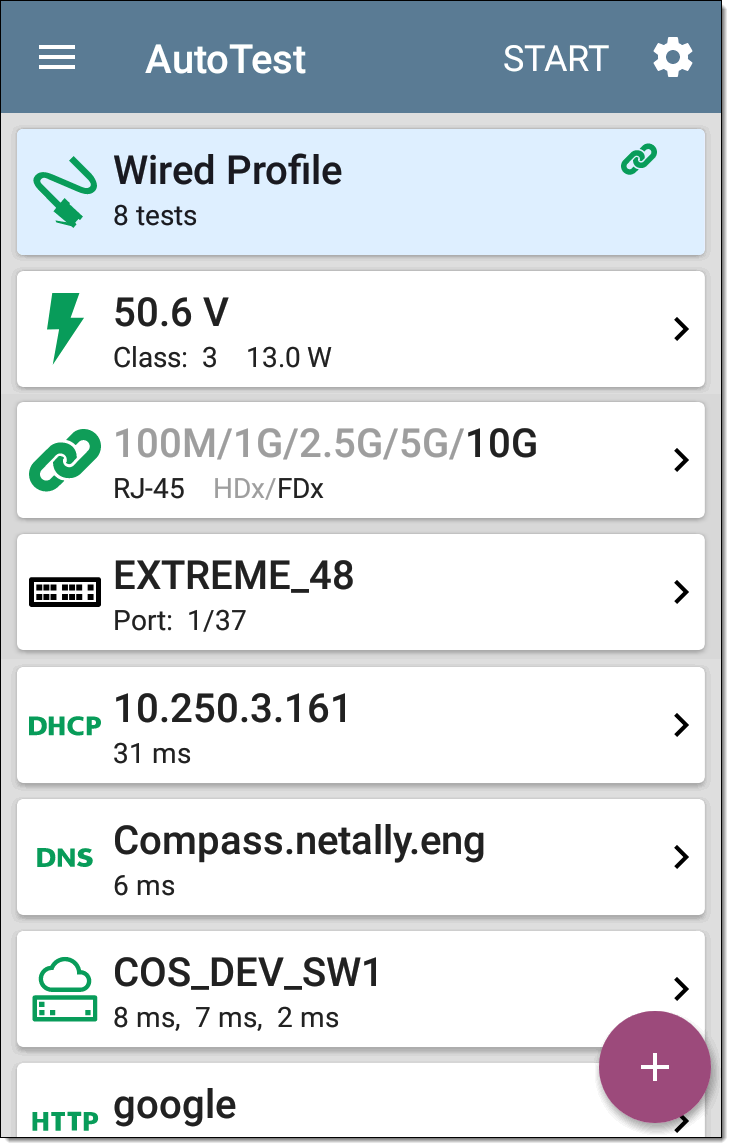
Like the main AutoTest screen, Wired Profile tests are summarized on cards. Tap a card to view individual test screens.
Each test icon (except the switch) displays green, yellow, or red to indicate the status of the completed test step: Success/Warning/Fail. The Switch Test card shows the name and port of the nearest switch, but does not turn green to indicate success.
After a Wired Profile runs, a wired network link is maintained for further testing. Wired Test Port linkage is indicated in the top Status Bar with this notification icon:  .
.
The Link-Live upload icon  in the app header indicates the status of uploaded or saved test results. Tap the icon to upload manually. See Uploading Test Results and Files in the Link-Live chapter.
When EZ Wired Profile Connects Automatically
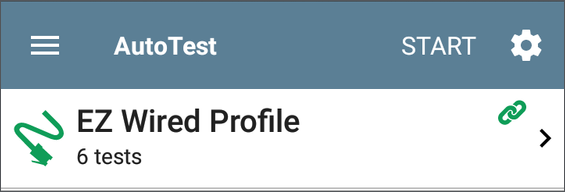
When you connect a copper cable and energy is detected on the top RJ-45 Wired Test port, the EZ Wired Profile will run automatically, except in these cases:
-
LANBERT app is open.
-
AutoTest is open with multiple wired profiles enabled. If only EZ Wired is enabled, it will run.
NOTE: After disconnecting a cable and reconnecting, wait a few seconds for auto-link to trigger.
Wired-Profile-Specific Tests
LinkRunner 10G features the following wired tests:
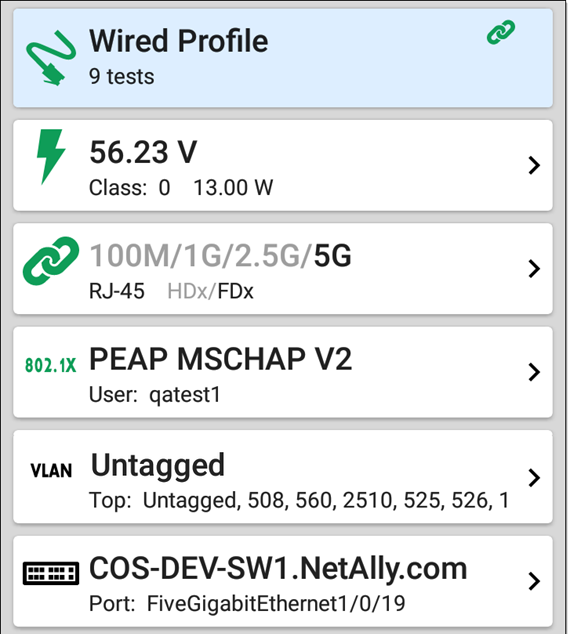
The 802.1X card only appears if the 802.1X setting is enabled for the Wired Profile.
The VLAN test card appears if the VLAN setting is enabled or if VLAN-tagged traffic is detected during the AutoTest.
DHCP, DNS, Gateway, and Target tests are common to both Wired and Wi-Fi profiles (as supported by your tester). See related topics below.