Main AutoTest Screen
To open the AutoTest app, tap the AutoTest icon  on the Home screen.
Each profile and test is summarized on a card. Tap a profile's or individual test's card to open and view test result details, including the causes of any Warnings or Failures.
Tap the START button on the main AutoTest screen to run all the Profiles in the currently active Profile Group.
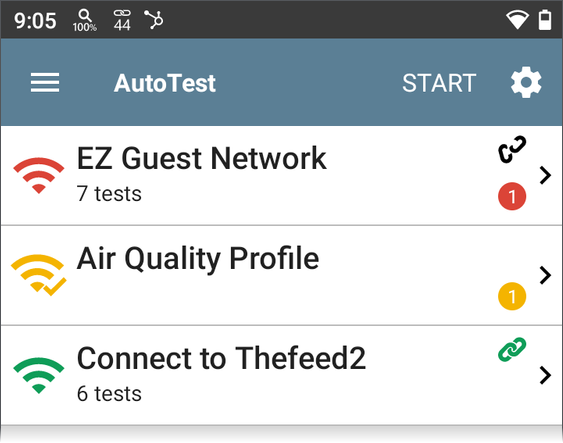
The AutoTest screens display icons that correspond to the type of profile, test, or measurement. After running, these icons change color to indicate the status of the test:
- Green indicates a successful test or measurement within the set threshold.
- Yellow indicates a Warning condition.
- Red indicates test Failure.
The number of warnings or failures within each test profile is also displayed in a colored circle to the right of each profile card:  (2 Warnings, 1 Failure). The thresholds that control the colored test gradings are adjustable in the settings
  screens for each profile and test type.
Link status icons on each profile card indicate the current connection state:
-
 A green link icon indicates an active network connection.
 -
 A black broken link icon indicates the tester is not currently linked on the connection configured by this test profile.
 -
No link icon is displayed when there are no link results.
Related Topics
AutoTest Settings and Profile Groups