InSites
InSites analyzes survey and wireless analysis data against configurable thresholds and displays Pass/Fail indicators, making it easy to identify areas or devices that do not meet your performance requirements. InSites is available in AirMapper and Wi-Fi Analysis.
NOTE: InSites requires an active AllyCare Pro subscription.
Opening InSites
In AirMapper: Open a survey heatmap, then click InSites in the right-side menu.
In Wi-Fi Analysis: Open a Wi-Fi Analysis result, click the floating action button (FAB), and select InSites.
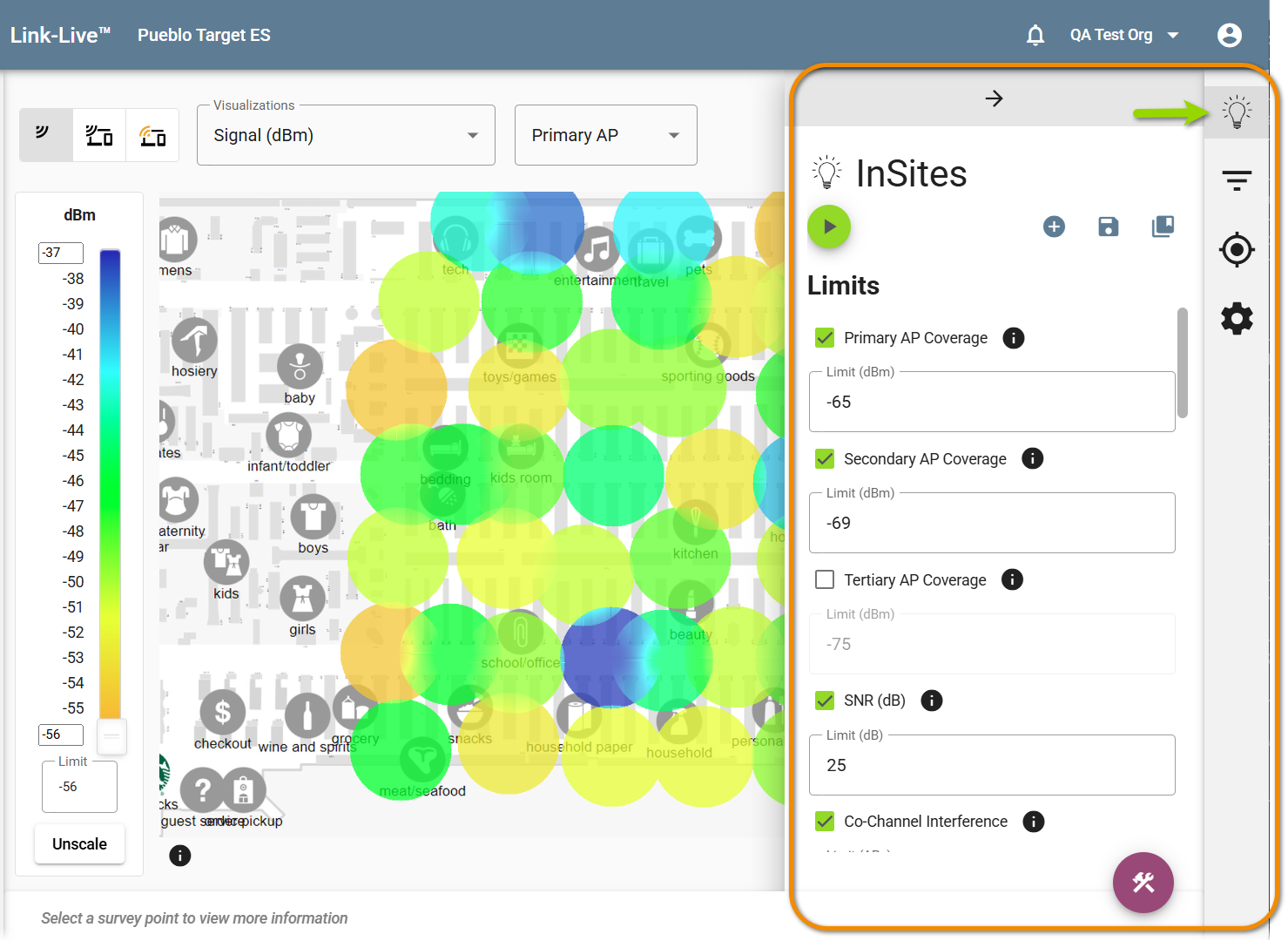
InSites Additional Actions
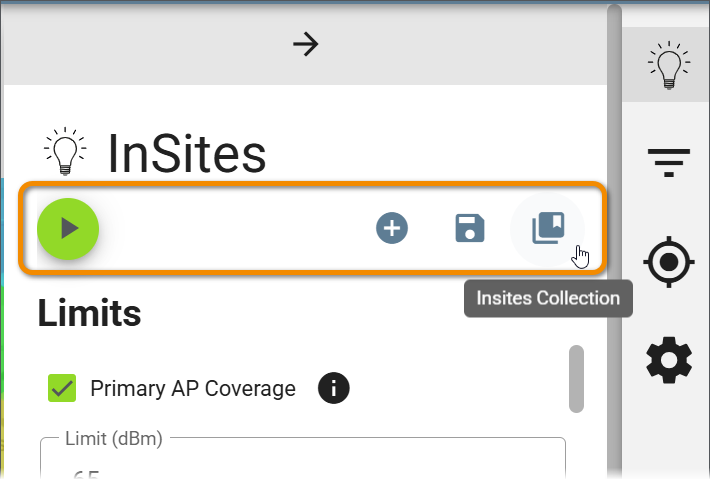
The icons below the InSites panel title provide the following actions:
-
Save this InSite as a View – Generate a View from the current InSites settings for use in Templates and Reports.
-
Save InSites Settings – Save the current InSites configuration with a specific name and make it the current organization-wide default.
-
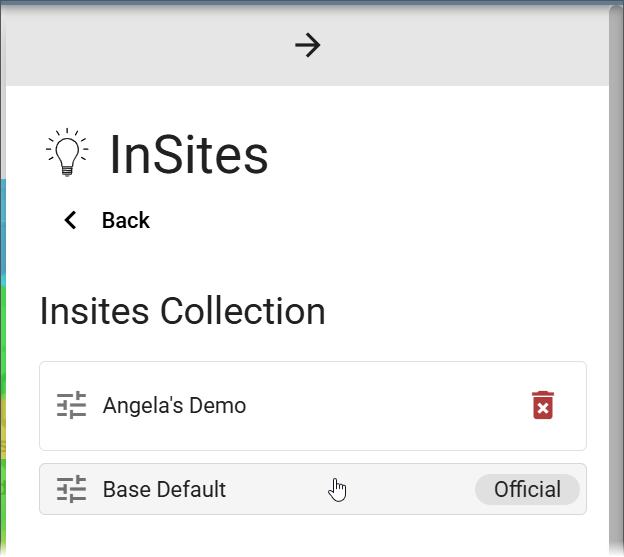
InSites Collection – Displays all saved InSites configurations. Click a name to update the display with the saved settings. Select Base Default to reset InSites to defaults.
Before running InSites in AirMapper, you can apply heatmap filters (such as SSID or band) to scope the analysis to specific networks. InSites evaluates only the data that matches the active filters, which is useful for excluding neighboring networks outside your control.
Configurable Limits
Available thresholds depend on the survey type. Passive survey limits include:
- First AP Coverage
- Secondary AP Coverage
- Third AP Coverage
- SNR (dB)
- QBSS Utilization
- QBSS Station Count
Active survey limits include:
- Active Signal Strength
- Active SNR (dB)
- Active TX Rate (Mbps)
InSites Results
After running InSites, the panel displays a table listing each measured metric, along with its Pass/Fail status, configured Limit, and the Worst value found in the survey.
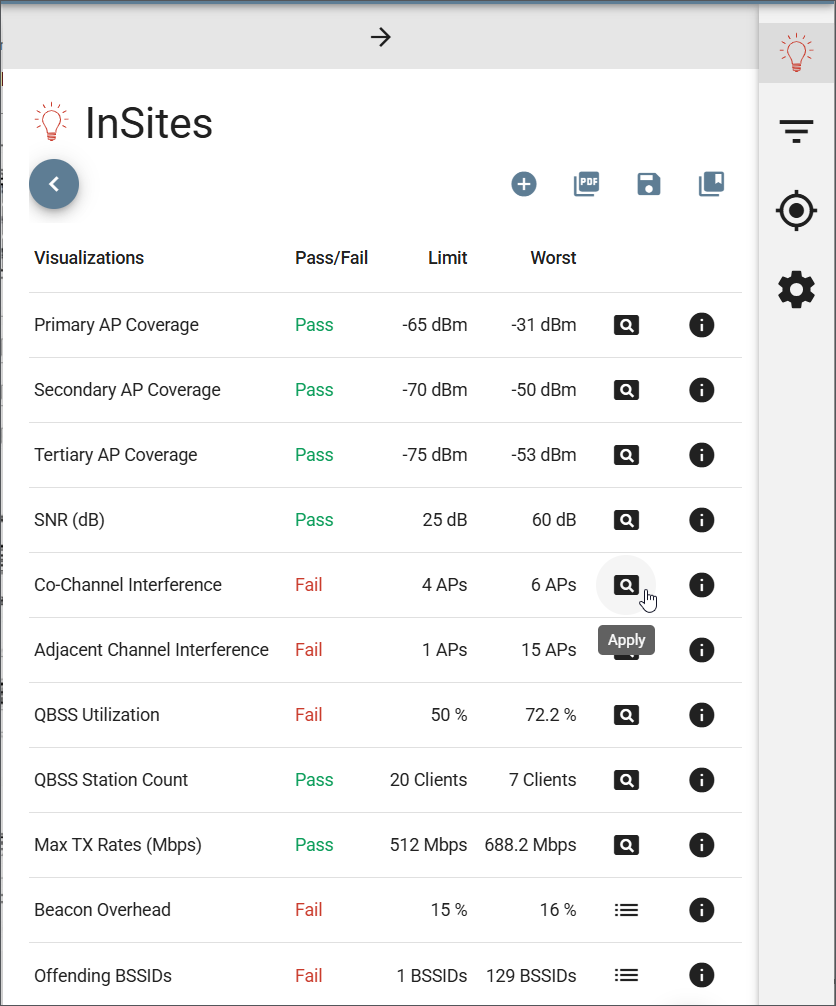
Click the magnifying glass icon in a row of the Visualizations table to display the heatmap for that metric and see where failures are occurring on the floor plan.
From the InSites results you can also click these action icons:
-
+ – Create a View based on the current filters and parameters.
-
PDF – Generate a PDF report of the InSites results.
-
Save – Save the current settings with a custom name and set them as the current organization-wide default.
-
InSites Collection – Displays all saved InSites configurations. Click a name to apply its settings. Select Base Default to reset InSites to defaults.