 Analysis
The Analysis section in Link-Live displays network analysis results uploaded from compatible NetAlly testers. Three analysis types are available: Discovery Analysis, Wi-Fi Analysis, and Path Analysis.
Click Analysis in the navigation drawer to open the Analysis section. A sub-menu provides access to:
-
Analysis – The main list of all analysis results.
-
Monitoring – Scheduled and continuous monitoring. See Monitoring.
-
Import Analysis – Import analysis data from a file.
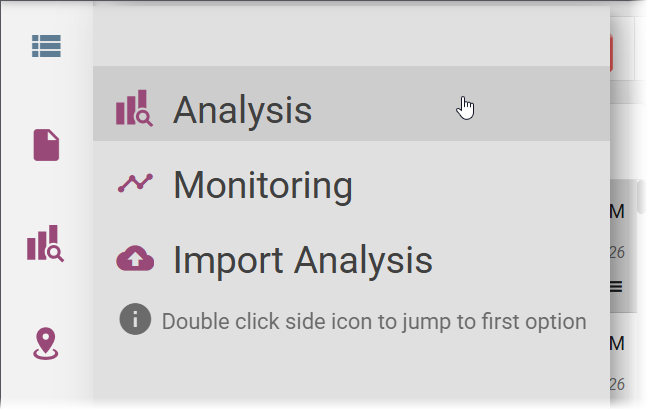
Tip: Double-click the Analysis icon in the navigation drawer to jump directly to the Analysis list.
The Analysis List
The Analysis list shows all analysis results across all types in a single list. Use the type filter icons in the search bar to show only a specific type.
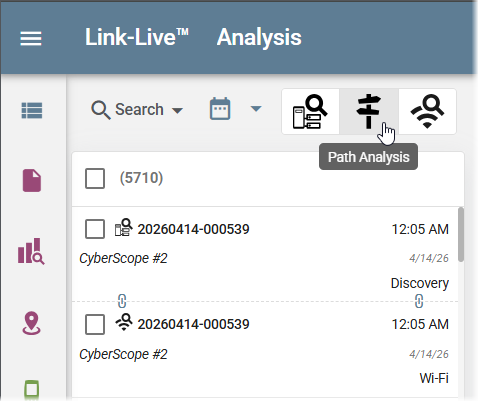
Each entry in the list shows the analysis name, date, time, unit name, and analysis type. Click an entry to show its details in the detail panel.
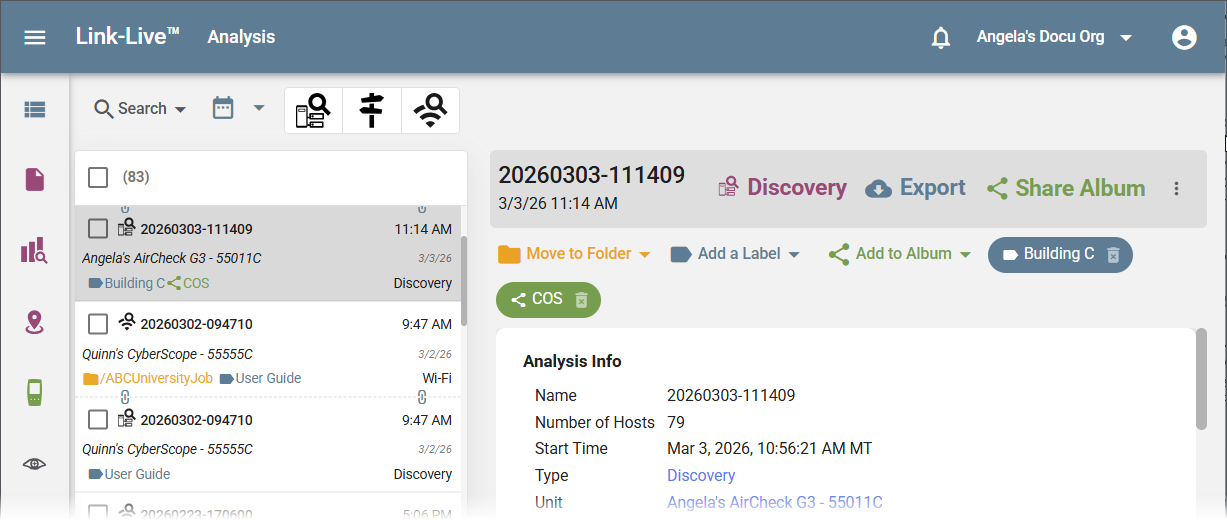
Export saves the analysis as an .LLA file on your device, allowing you to import the analysis to a different organization and/or account.
Archived Analyses
Analyses that have not been viewed or updated for an extended period are automatically archived. An archived analysis displays an Unarchive button above the details panel. Click Unarchive and wait for the data to become accessible before opening the analysis.
Analysis Types
Each analysis type also features alternate data views on a dedicated page. Select the analysis type button above the detail panel to open the dedicated analysis page.
-
Discovery Analysis – Visualize discovered devices, review network details, and identify topology and potential problems.
-
Wi-Fi Analysis – Review channel utilization, access point details, client connections, and other wireless metrics.
-
Path Analysis – Review per-hop latency, identify unresponsive hops, and detect split routes.
Import Analysis
The Import Analysis option in the Analysis sub-menu lets you upload a previously exported analysis file (LLA format) into Link-Live. Selecting it opens the Import Analysis dialog with the following fields:
-
Title – A name for the imported analysis as it will appear in Link-Live.
-
Labels – Optional labels to apply to the imported analysis.
-
Choose File – Opens a file browser to select the analysis file to upload.
Click Upload to import the file. The analysis appears in the Analysis list once uploaded.