Path Analysis
Path Analysis in Link-Live displays path trace and route data collected by compatible NetAlly testers. The path is traced from the tester to a destination device at both Layer 2 and Layer 3, using either ICMP or TCP. Use Path Analysis to review per-hop latency, identify unresponsive hops, and detect split routes.
Path Analysis results appear in the Analysis list alongside Discovery and Wi-Fi Analysis results. See Analysis for information on accessing and navigating the list.
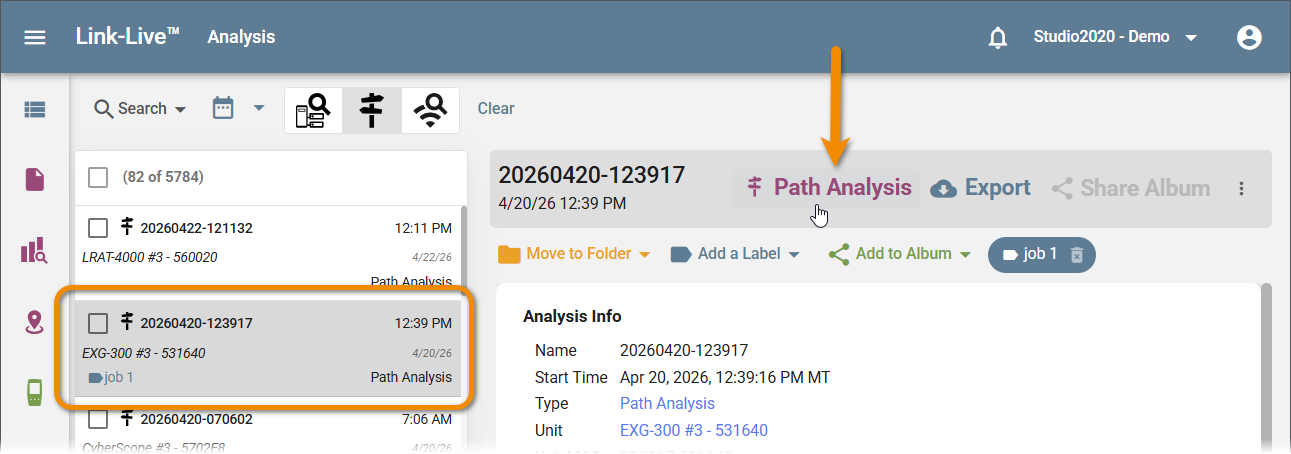
To open the dedicated Path Analysis View, click the Path Analysis button on the Analysis list page:
Path Details Table
Opening a Path Analysis result displays the Path Details table: a full-width view showing each hop in the traced route. The source unit and its directly connected switch appear above the numbered hops. Use the Columns control on the right side of the table to show or hide columns.
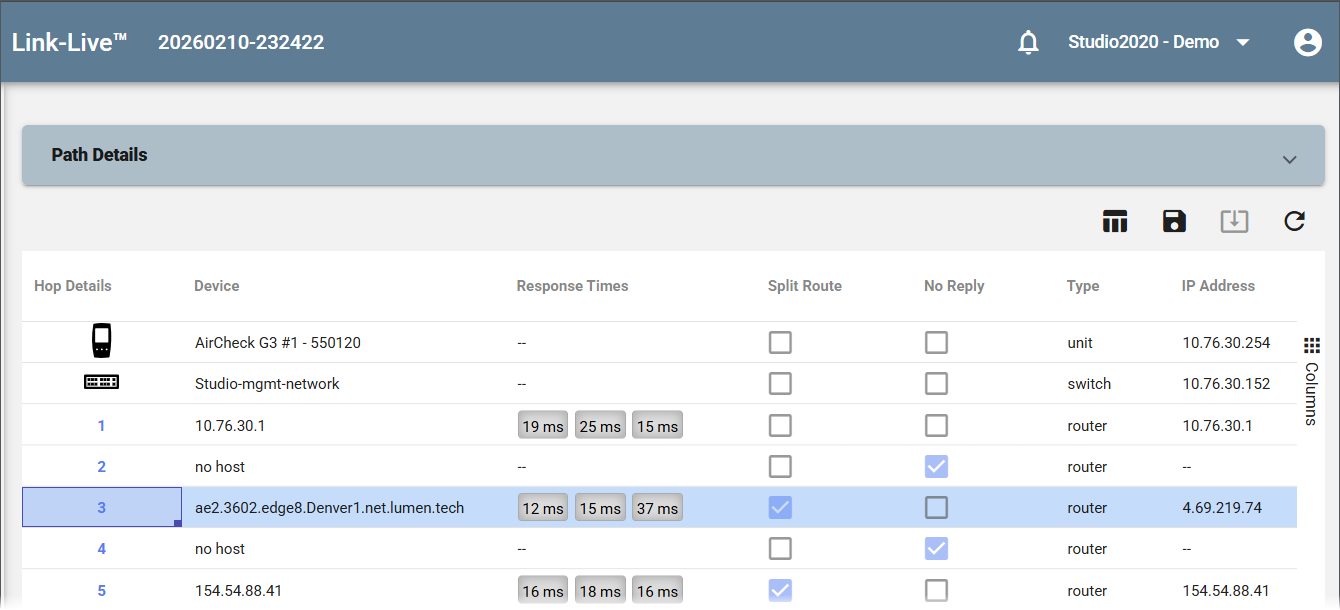
The table includes the following columns:
-
Hop Details – The hop number. The source unit and connected switch are shown with device icons above hop 1.
-
Device – The hostname or IP address of the device at that hop. Displays "no host" if no hostname was returned.
-
Response Times – Three probe response times for the hop, shown as gray badges (for example, 19 ms, 25 ms, 15 ms). Displays "–" if the hop did not respond.
-
Split Route – Indicates that more than one router responded for this hop, which may indicate load balancing across multiple routers.
-
No Reply – Indicates no response was received from this hop. Not all routers return ICMP time-to-live expired packets, so some hops may show no reply.
-
Type – Device type at the hop: unit, switch, or router.
-
IP Address – The IP address of the device at that hop.
Hop Details
Clicking a row in the Path Details table shows additional information for that hop:
-
Switch – Shows the ingress and egress ports and the VLANs assigned to those ports, along with the device name and IP address.
-
Router – Shows the round trip time between the tester and that router.
-
Split Route – Shows each router that responded for that hop.
Generating Reports
Click the floating action button (bottom right) to generate a report from the path analysis result. Both CSV and PDF formats are available. For the PDF report, you can add a logo, title, subtitle, labels, and description before generating.
Completed reports are saved to the Files section in Link-Live.