 EZ Wired App
The EZ Wired application provides a streamlined workflow for testing a wired network connection. When you tap START, the tester performs the AutoTest Wired Profile steps in the background, while EZ Wired shows the results in a simplified summary view.
EZ Wired consolidates key connectivity details such as link speed, duplex, and port information. Additional data (for example,
Viewing EZ Wired Results
Touch START to initiate a test.
The example below shows a copper connection test with active link established. The blue line between the switch icon and the tester icon indicates a copper connection.
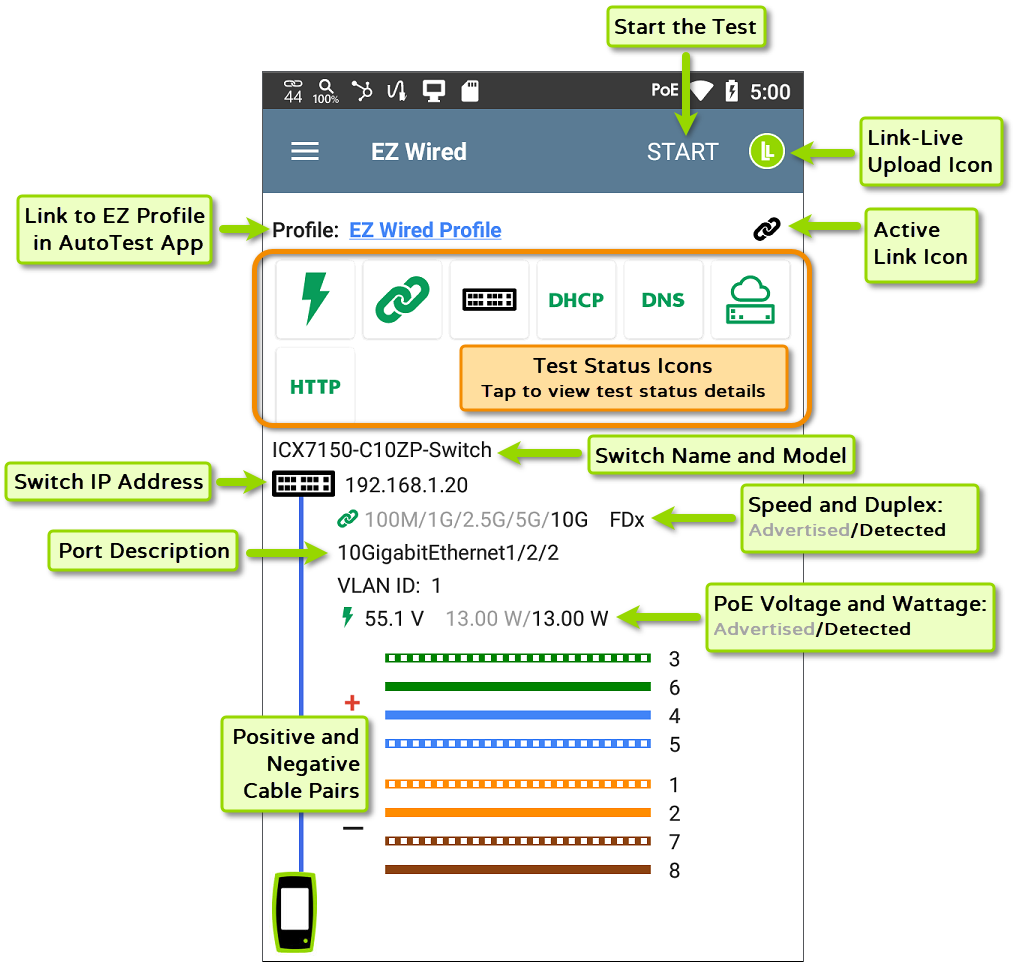
As the test runs, each step appears as a status icon:
Green — Successful result
Yellow — Warning condition
Red — Failure detected
The link status icon indicates current connection state:
-
 A green link icon indicates an active network connection.
 -
 A black broken link icon indicates the tester is not currently linked on the connection configured by this test profile.
 -
No link icon is displayed when there are no link results.
The small link icon near the switch and the small PoE icon near the PoE results are always displayed in black, regardless of test result status.
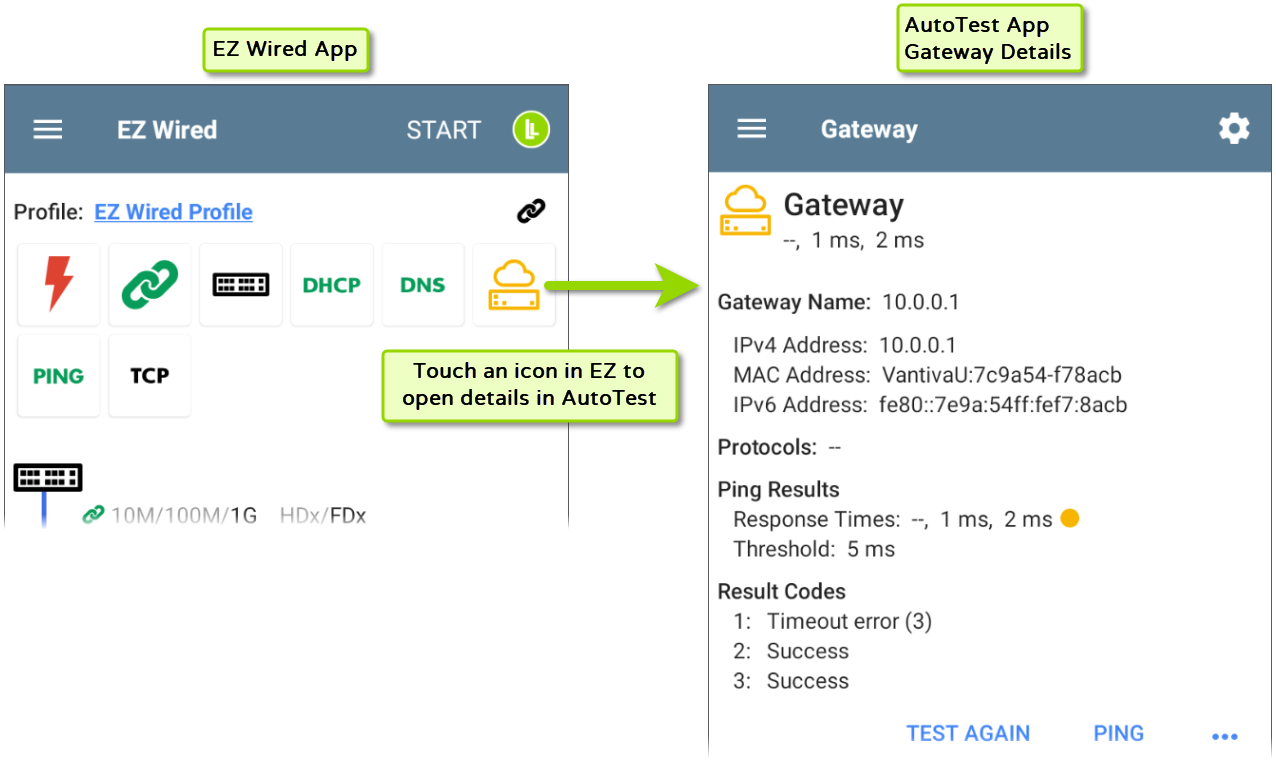
Tap any status icon to view the detailed results screen for that test component in the AutoTest app: PoE, Link, Nearest Switch, DHCP, DNS, Gateway, and test targets.
Viewing Fiber Results
When testing a fiber/SFP connection, the line between the switch icon and test unit displays orange and SFP details are listed.

Temperature: Temperature in degrees Celsius
Voltage: SFP transceiver power supply voltage (~3.3 V)
Tx Bias Current: Transmitter bias current
Tx Power: Transmitter power
Rx Power: Link receiver power
Ally Intelligence
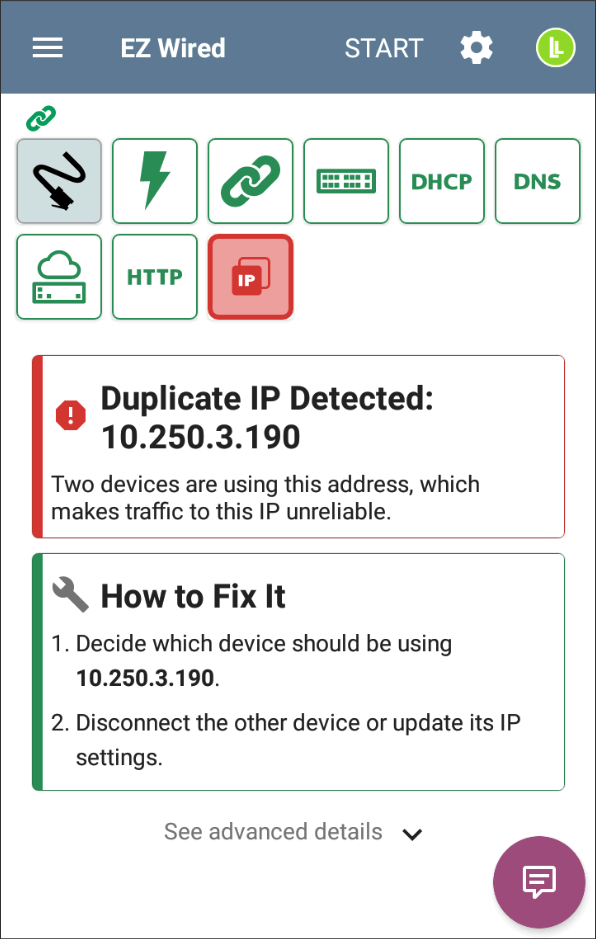
Ally Intelligence reviews your EZ Wired results and calls out common network problems in plain language. When it recognizes a known condition, such as a duplicate IP address, a rogue DHCP server, or missing PoE, it displays a description of the problem along with the details you need to troubleshoot and fix it.
NOTE: Ally Intelligence requires an active AllyCare Pro subscription.
The example below shows a duplicate IP detection.
Configuring EZ Wired Profile Settings
EZ Wired uses the current EZ Wired Profile configuration, including Wired Connection settings and test targets.
Select the underlined EZ Wired Profile link at the top of the EZ screen to go to the main EZ Profile results screen in the AutoTest app. From there, you can open and adjust the settings for the profile. Any added test targets will appear as new icons in the EZ Wired summary.
-
To configure EZ Wired, access the Profile's settings:
-
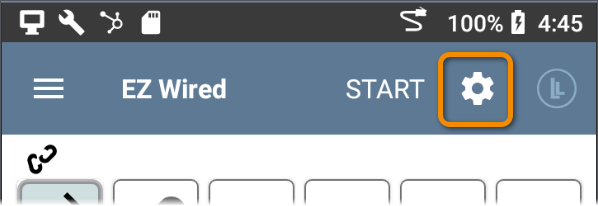
Touch the settings gear icon at the top of the EZ Wired screen:
-
Or, open the Profile settings from within the AutoTest app:

-
-
On the EZ Wired Profile settings screen, configure as needed.
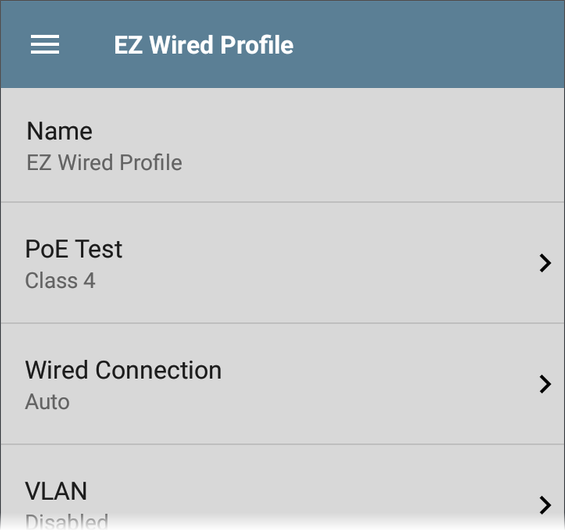
The settings you configure on the EZ Wired Profile settings screen (above) will be used to run this profile from either AutoTest or EZ Wired.
For information on Wired Profile settings, see Wired AutoTest Profiles.
EZ Wired Profile Name
You may give the EZ Wired Profile a custom name. The same profile will continue to be the designated EZ profile, regardless of the name.

Viewing and Managing All Profiles
To view and manage all of your AutoTest profiles, navigate to the AutoTest Settings screen from the navigation drawer in the AutoTest app.
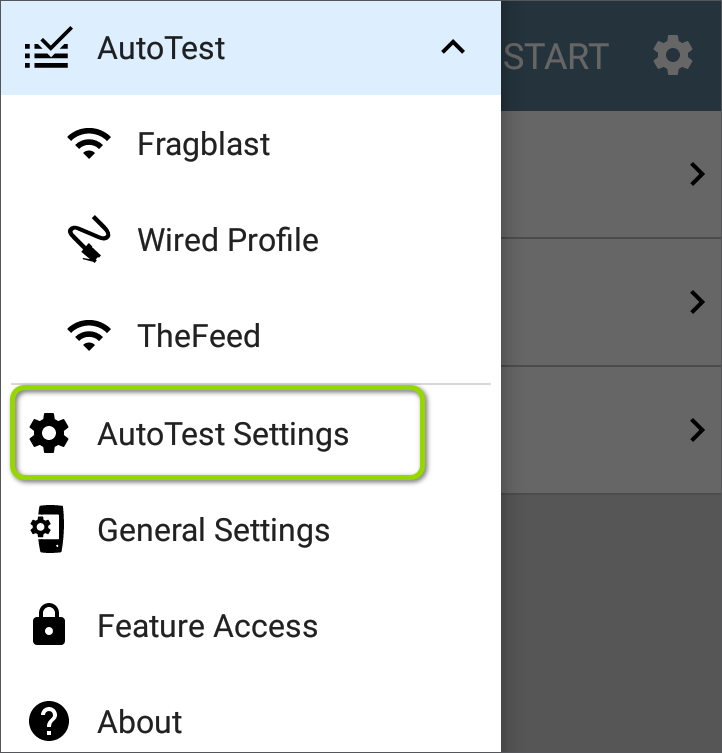
The AutoTest Settings screen indicates which profile(s) are the EZ profiles.
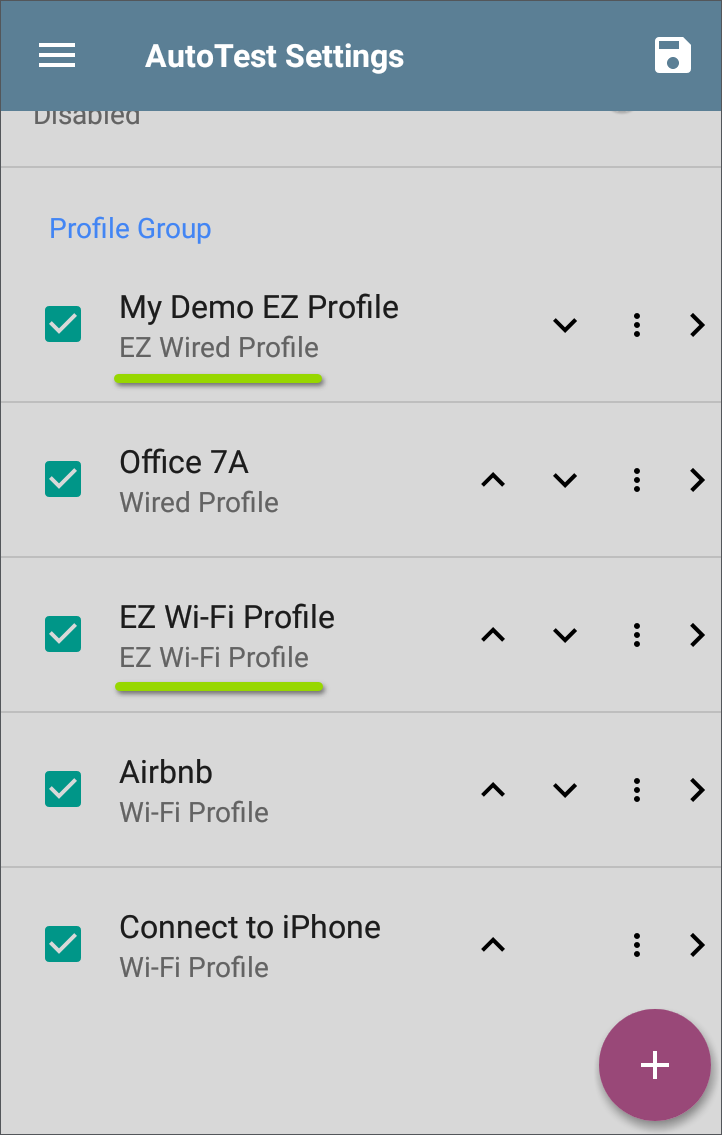
NOTE: If you have a wired-only tester (LinkRunner), you will only see Wired Profiles here.
Touch any of the profile names to open and customize their individual settings. See AutoTest Settings and Profile Groups for the full topic on this screen and its functionality.
You cannot select a different profile to use as the EZ profile, but you can copy all settings from a different profile into the EZ profile.
Copying Profile Settings to the EZ Profile
To copy the configuration from a different wired profile to the EZ profile, go to the main AutoTest Settings screen from the navigation drawer in the AutoTest app.
On the AutoTest Settings screen, tap the overflow icon for the profile you want copied, and select Copy to EZ Wired Profile.
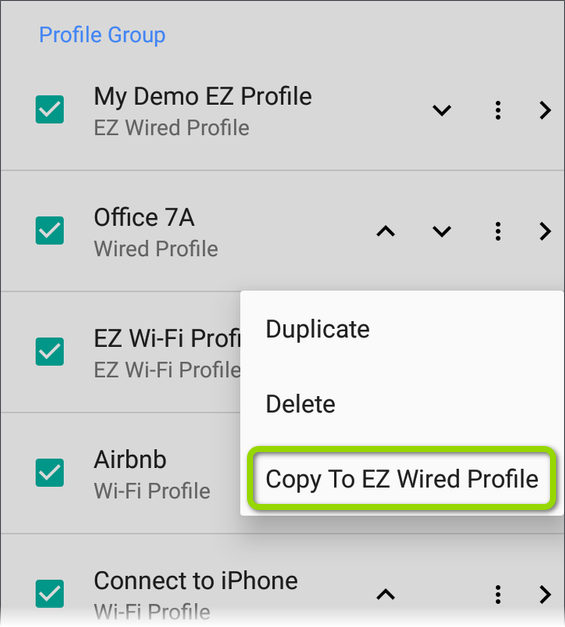
All configuration settings will be applied to the EZ Wired Profile.
Related Topics
See the Wired AutoTest Profiles topic and sub-topics for more information on wired connection settings and results.