
Keeping your NetAlly devices up to date ensures optimal performance, access to new features, and enhanced security. Whether you use AirCheck G3, CyberScope Air, or other NetAlly tools, updating software is simple through the Link-Live Cloud Service.
Step 1: Claim Your Device in Link-Live
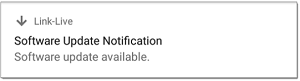
To access software updates, you must create a Link-Live account and claim your device. Once claimed, an update icon (down arrow) will appear in the status bar if an update is available.
Step 2: Check for Updates
- Open the Link-Live App from the Home screen.
- Tap the menu icon or swipe right to open the navigation drawer.
- Select Software Update to view available versions.
- If an update is available, tap Download + Install.
- Wait for the files to download and install. The device will restart automatically.
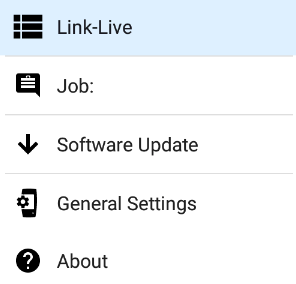

3. Tap Software Update. The Software Update screen opens and displays the version number of the available update. 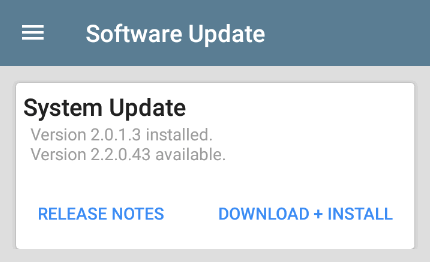
4. If a System Update is available, touch Download + Install to update.
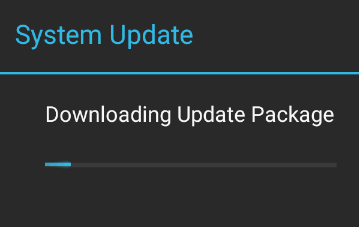
5. The files download and install. When finished, the unit will restart.
Power Requirements
To avoid interruptions during the update, ensure your device is charged to at least 50% or keep it plugged into a charger.
Manual Update Option
Prefer manual updates? Follow the Manual Update Instructions provided in the this link..
Regular software updates keep your NetAlly devices running smoothly and securely. By claiming your device in Link-Live and following these steps, you’ll ensure your tools are always ready for accurate network testing.