As a network engineer, you’re always looking to optimize network performance and provide the best user experience possible. One of the key metrics you need to understand and manage is network latency. High latency can wreck video calls, slow down critical business applications, and frustrate users.
In this post, we’ll explain what network latency is, what causes it, how to check it, and most importantly – how you can reduce it and keep your network running smoothly.
Table of Contents
- What is Network Latency?
- What Causes High Network Latency?
- What is Good Network Latency?
- How to Test Network Latency
- Network Latency vs Bandwidth vs Throughput
- How to Reduce Network Latency
- Network Latency Troubleshooting Guide
- VoIP and Real-Time Application Latency
- Wi-Fi vs Ethernet Latency Differences
- Advanced Network Optimization for Professionals
What is Network Latency?
Network latency is the time it takes for data to travel from its source to its destination across a network. Think of it like measuring how long it takes a car to drive between two cities – the journey time is the latency. Understanding the network latency meaning is fundamental to optimizing network performance.
Latency is typically measured in milliseconds (ms), with good latency being under 50ms for most applications. The network latency definition describes this as round-trip time (RTT) – the time it takes for a request to reach its destination and return with a response. High latency in computer networks creates delays and unresponsiveness. Low latency? Things feel snappy and responsive.
What’s the difference between ping and latency? Ping is the tool used to measure latency. Latency is the actual time delay itself – ping measures it, latency is what you’re measuring.
As more companies rely on cloud-based applications and real-time IoT data, latency creates inefficiencies that directly impact productivity. High latency reduces the benefits of expensive high-bandwidth infrastructure, affecting user experience and customer satisfaction.
What Causes High Network Latency?
Understanding what causes high latency helps you diagnose issues faster. Network latency causes range from physical infrastructure to software inefficiencies.
- Distance: Physical distance is a major factor. A website in Trenton, NJ responds to Farmingdale, NY users (100 miles) in 10-15 milliseconds, while Denver users (1,800 miles) face 50 milliseconds. Light travels through fiber at 4.9 microseconds per kilometer.
- Number of network hops and hardware: Multiple routers, switches, firewalls, and load balancers increase hops and latency. Each hop adds processing time for routing table lookups and packet forwarding, especially with outdated equipment.
- Network congestion and data volume: When high data volume clogs the network, it’s like a four-lane highway merging into a single lane. Devices have limited processing capacity, worsening during peak usage on shared infrastructure.
- Server performance: Sometimes what appears to be network latency is actually slow server response time. Servers taking too long to process requests create delays that seem like network issues.
- Transmission medium: Fiber optic cables have lower latency than copper, which has lower latency than wireless. Each medium switch adds milliseconds to transmission time.
- End-user issues and storage delays: Devices low on memory or CPU resources create perceived latency. Storage delays accessing data packets cause holdups at intermediate devices like switches and bridges.
- Website construction: Heavy content, large images, or multiple third-party resources cause congestion as browsers download larger files.
Pro Tip:
When troubleshooting latency, isolate whether the issue is network-related or server-related. Use ping tests to measure pure network latency, then compare with full application response times.
What is Good Network Latency?
What’s a good network latency? It depends on your application, but understanding network latency benchmarks helps you set the right expectations. Is 30ms latency good? Yes – 30ms falls in the optimal range for most applications.
| Latency Range | Performance Level | Impact on Applications |
|---|---|---|
| Under 20ms | Excellent | No noticeable delay; ideal for all applications including competitive gaming |
| 20-50ms | Good | Minimal delay; optimal for VoIP, video conferencing, and business use |
| 50-100ms | Acceptable | Slight delay noticeable in real-time apps; fine for web browsing |
| 100-150ms | Fair | Noticeable delay; VoIP quality degrades, gaming becomes difficult |
| Over 150ms | Poor | Significant delays; real-time applications severely impacted |
Application-Specific Requirements:
- VoIP and video conferencing: 20ms optimal, 150ms acceptable, 300ms+ unacceptable.
- Online gaming: Under 50ms for competitive play. Over 100ms degrades experience.
- Web browsing: Under 100ms is optimal. 200-300ms is acceptable.
- Real-time applications: Streaming analytics and online auctions require the lowest latency because lag can have financial consequences.
What is normal Wi-Fi latency? Wi-Fi typically sees 2-20ms under good conditions, compared to 1-10ms for wired Ethernet. Wi-Fi latency can spike higher with interference.
Professional Network Standards: Enterprise environments should target under 50ms for critical business applications. Industries like telemedicine, financial services, and telerobotics require under 20ms because delays can have serious operational or safety consequences.
How to Test Network Latency
Knowing how to test network latency is essential for maintaining optimal performance. Regular network latency checks help you spot issues before they impact users.
Ping Tests: The most common network latency test uses the ping command. Type ping google.com in Command Prompt (Windows) or Terminal (Mac/Linux). The ping command sends ICMP echo request packets measuring the time for 32 bytes of data to reach its destination and return. Results show “time=15ms” – that’s your latency.
Traceroute: Shows latency at each network node. Use tracert google.com (Windows) or traceroute google.com (Mac/Linux) to identify which hops are problematic.
Online Speed Test Tools: Websites like Speedtest.net, Orb.net, and Cloudflare’s speed test provide quick network latency checks with bandwidth measurements. While convenient, they only test to specific servers and may not reflect latency to your actual business applications.
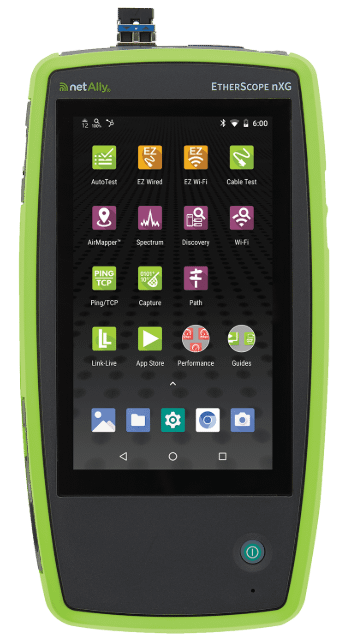
Path Analysis: The EtherScope nXG provides Path Analysis, identifying overloaded interfaces, device resources, and interface errors across your network infrastructure.
Key Measurement Metrics:
- Round Trip Time (RTT): Complete time for data to travel from source to destination and back. RTT compounds when multiple requests are needed and is affected by both network latency and processing time.
- Time to First Byte (TTFB): Time from when a client sends a request until the first byte of the server response arrives. TTFB measures both server processing time and network latency.
Continuous Monitoring Best Practices:
- Deploy monitoring tools that track latency continuously
- Set baseline expectations based on historical data
- Configure alerts when latency exceeds thresholds (typically 20-30% above baseline)
- Monitor at multiple network points to identify trends before they impact users
Network Latency vs Bandwidth vs Throughput
Understanding network latency vs speed is crucial for optimization. Many confuse latency vs bandwidth, but they measure different things.
Is latency more important than Bandwidth? It depends. Latency matters most for real-time applications like VoIP and gaming. Bandwidth matters most for large file transfers and streaming.
Does increasing bandwidth reduce latency? No. You can have a 1Gbps connection with terrible latency if the network has issues.
| Metric | Definition | Measured In | Highway Analogy |
|---|---|---|---|
| Latency | Time delay for data to travel | Milliseconds (ms) | How fast cars travel |
| Bandwidth | Maximum data capacity | Mbps or Gbps | Maximum number of cars in a highway |
| Throughput | Actual data successfully transmitted | Mbps or Gbps | Cars reaching destination |
When Each Matters Most:
- Latency: VoIP, video conferencing, gaming, financial trading – applications where delays are immediately noticeable
- Bandwidth: Video streaming, file downloads, backups, multiple users – applications moving large data volumes
- Throughput: Overall network efficiency and real-world performance
Low latency with low bandwidth means data arrives quickly but not much can travel – throughput will be low. High bandwidth with high latency means lots of data flows but arrives slowly. The ideal network has both high bandwidth AND low latency for high throughput. Latency can reduce ROI in expensive high-bandwidth infrastructure.
How to Reduce Network Latency
Learning how to reduce and improve network latency requires different approaches for end users versus network professionals.
User-Side Fixes:
Switch to Ethernet for 1-10ms latency versus Wi-Fi’s 2-20ms. Check that others aren’t using excessive bandwidth. Close unnecessary background applications. Optimize DNS by switching to faster servers like Google DNS (8.8.8.8) or Cloudflare DNS (1.1.1.1) to reduce lookup delays. Update router firmware or replace outdated equipment.
Professional Network Optimization:
Use a CDN: Content Delivery Networks cache content on servers close to end users, delivering data from nearby servers instead of distant origins.
Optimize code and content: Streamline application code and database queries. Compress images using WebP and implement lazy loading. Load above-the-fold content first. Enable gzip or Brotli compression.
Upgrade infrastructure: Deploy higher-performance routers and switches. Upgrade to fiber optic connections for lower latency than copper.
Implement QoS: Prioritize time-sensitive traffic like VoIP or video conferencing to keep latency low during congestion.
Reduce distance and hops: Host servers geographically closer to end users. Use cloud solutions and direct connections instead of routing through the public internet. Implement subnetting to group endpoints that frequently communicate.
Optimize traffic management: Use load balancers to distribute traffic and prevent bottlenecks. Configure network buffers to match traffic patterns and avoid bufferbloat.
Pro Tip:
Don’t just focus on reducing latency – aim for consistent latency. Variable latency (jitter) is often worse for user experience than slightly higher but consistent latency.
Network Latency Troubleshooting Guide
How do I fix my network latency? Follow this systematic network latency troubleshooting approach:
Common Symptoms and Their Causes:
- Slow page loads: High RTT, server issues, or DNS problems
- Choppy VoIP/video: Latency over 150ms, jitter, or packet loss
- Application timeouts: Excessive hops or congestion
- Intermittent slowdowns: Peak usage or failing hardware
Step-by-Step Diagnostic Process:
- Establish baseline – Run ping and traceroute. Compare against historical baseline.
- Isolate the problem – Test pure network latency with ping, then compare with application response times.
- Check local devices – Disconnect devices one at a time. Verify adequate memory and CPU.
- Test wired vs wireless – Switch from Wi-Fi to Ethernet. If latency improves, wireless interference is the culprit.
- Analyze network path – Use traceroute to identify high-latency segments. The EtherScope nXG delivers detailed Path Analysis to quickly pinpoint latency sources.
- Check for congestion – Monitor bandwidth utilization for capacity issues.
- Review QoS – Verify policies are properly configured.
- Escalate when necessary – If issues persist after checking local infrastructure or appear on external traceroute hops, contact your ISP. Otherwise, resolve internally with hardware upgrades, configuration optimization, or QoS implementation.
VoIP and Real-Time Application Latency
Real-time applications require a low latency network to function properly. Understanding VoIP latency requirements is critical for maintaining call quality.
Latency Standards:
- VoIP: 20ms is optimal, up to 150ms is acceptable, above 300ms is unacceptable
- Video Conferencing: Target under 100ms for smooth calls
- Enterprise/Professional: Target under 50ms for professional-grade communication
- Critical Industries: Telemedicine, financial services, and telerobotics require under 20ms to avoid operational or safety consequences
Impact on Call Quality: High VoIP latency degrades audio and video quality with choppy audio, frozen video, and conversation delays. Combined with jitter and packet loss, it makes real-time communication nearly impossible.
QoS Implementation: Configure QoS policies specifically for VoIP and video traffic. These applications need guaranteed bandwidth and priority routing to maintain low latency during congestion. Mark voice and video packets for priority handling at every network hop.
The CyberScope Air validates wireless performance for VoIP deployments, ensuring your Wi-Fi network meets latency requirements for critical real-time applications.
Wi-Fi vs Ethernet Latency Differences
Does using Wi-Fi increase latency? Yes. Understanding Wi-Fi latency differences helps you make informed infrastructure decisions.
Will an Ethernet cable improve latency? Absolutely. Ethernet provides 1-10ms latency on local networks. Wi-Fi typically sees 2-20ms under good conditions but can spike much higher.
Why Wired Has Lower Latency: Ethernet provides dedicated pathways without interference. Data travels at consistent speeds without competing for airtime. Fiber-optic and Ethernet have less latency than wireless networks.
Wi-Fi Factors Increasing Latency:
- Radio interference from other networks and devices
- Distance from access point requiring retransmissions
- Multiple devices sharing channels
- Protocol overhead and collision avoidance
- Channel switching
Wi-Fi 7 improves latency by introducing technologies like Multi-link Operations (MLO), but still can’t match wired performance.
When to Choose Each:
Ethernet: Latency-sensitive applications (VoIP, video conferencing, gaming), fixed devices, network infrastructure, high-bandwidth applications.
Wi-Fi: Mobile devices, impractical cabling areas, guest access, non-critical applications tolerating variable latency.
The AirCheck G3 conducts site surveys to identify Wi-Fi interference sources and optimize wireless performance.
Advanced Network Optimization for Professionals
Network professionals can implement advanced techniques to minimize latency and maximize performance.
Buffer Optimization and Network Tuning:
Configure buffers to match traffic patterns. Too-small buffers cause packet drops. Too-large buffers create bufferbloat that increases latency.
Best Practice: For 1Gbps links, use buffer sizes around 100-250ms of bandwidth (12-30 MB). For 10 Gbps links, use 5-10 ms (6-12 MB) to prevent buffer bloat. Monitor queue depths and adjust based on packet loss vs latency.
Advanced QoS Configuration:
Implement multi-tier QoS policies:
- Priority 1: VoIP and video – guarantee 30% bandwidth, max 50ms latency
- Priority 2: Business-critical apps – guarantee 40% bandwidth
- Priority 3: General traffic – 20% bandwidth
- Priority 4: Bulk transfers – 10% bandwidth, deprioritize during peaks
Use traffic shaping with weighted fair queuing or strict priority scheduling for time-sensitive traffic.
Monitoring and Alerting Setup:
Implement continuous monitoring to measure latency across multiple points. Establish baseline latency over 2-4 weeks. Configure alerts at 20-30% above baseline (warning) and 50% above (critical). Monitor both average and 95th percentile latency. Track to multiple destinations and correlate with bandwidth utilization and error rates.
Integration with NetAlly‘s Professional Testing Tools:
The EtherScope nXG combines Ethernet testing, Wi-Fi diagnostics, and performance validation with line-rate packet capture up to 10Gbps.
The LinkRunner 10G validates Multi-Gig and 10G connectivity, performs TruePower PoE testing, and conducts LANBERT Media Qualification to ensure cable plants support required speeds.
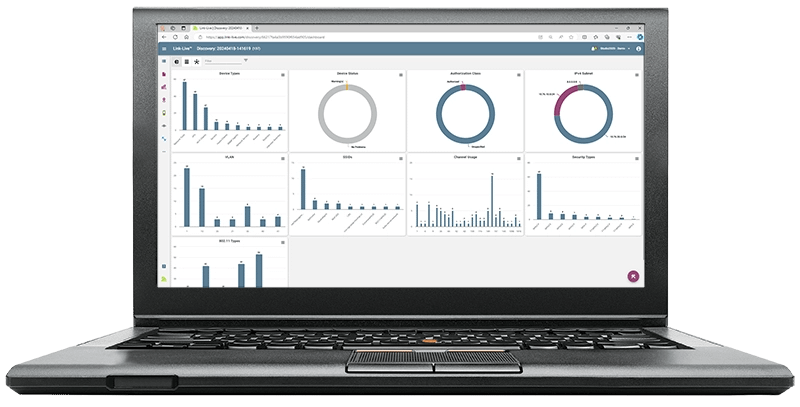
These tools help resolve latency issues faster by combining diagnostic functions and uploading results to Link-Live for team collaboration.